ZentUser manual
User manual
Zent User Manual
Everything the app does, step by step.
Last updated: 2026-07-20
Contents
Welcome to Zent
Zent is your app to keep your money under control simply and clearly: log expenses, set budgets, get payment reminders, track your income and savings goals, and —if you want— share expenses with your family or household.
It's designed so anyone can use it: large text, clear buttons, no linked banking, no ads and no tracking. This manual walks through every feature step by step.
Looking for something specific? Use the index on the left to jump to the section you need.
Getting started: create your account
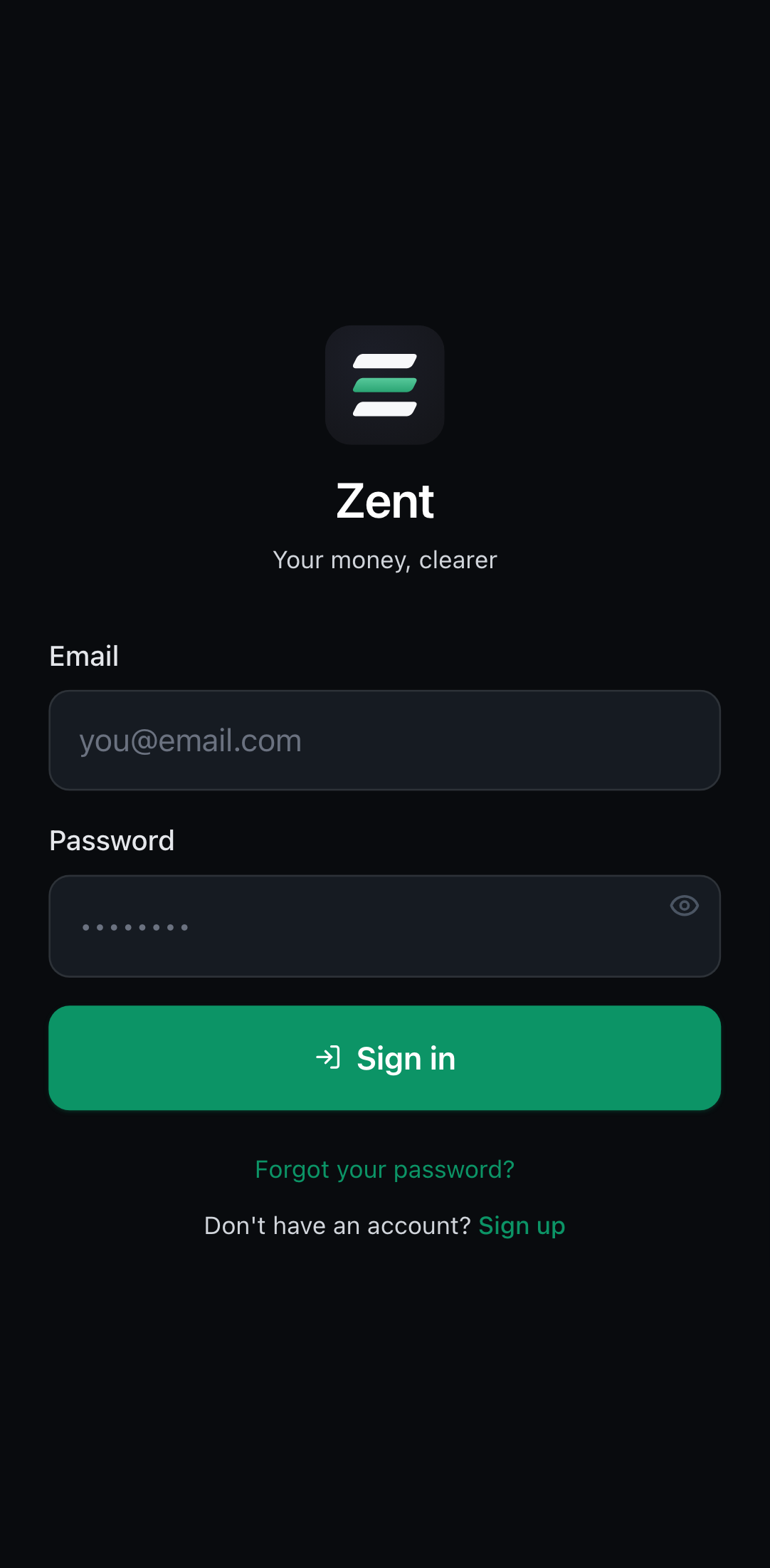
When you first open Zent you create your account with your email. It's quick and we don't ask for banking data.
- 1Open Zent and tap Create account.
- 2Enter your name, email and a password.
- 3Check the box confirming you are 18 or older and accept the Terms and Privacy Policy.
- 4Tap Sign up. We'll send a confirmation email to your inbox.
- 5Open that email and tap the link to confirm your account; then log in.
- 6Finish onboarding: pick your currency and you're set.
Don't see the confirmation email? Check your spam / junk folder (it sometimes lands there). You must confirm your email before you can log in.
Already have an account? Tap Log in with your email and password. Forgot it? Use Forgot your password? to get a reset link.
Zent includes a 14-day free trial with all features. After that you can subscribe to Zent Pro to keep logging (see the Zent Pro section).
The Home screen
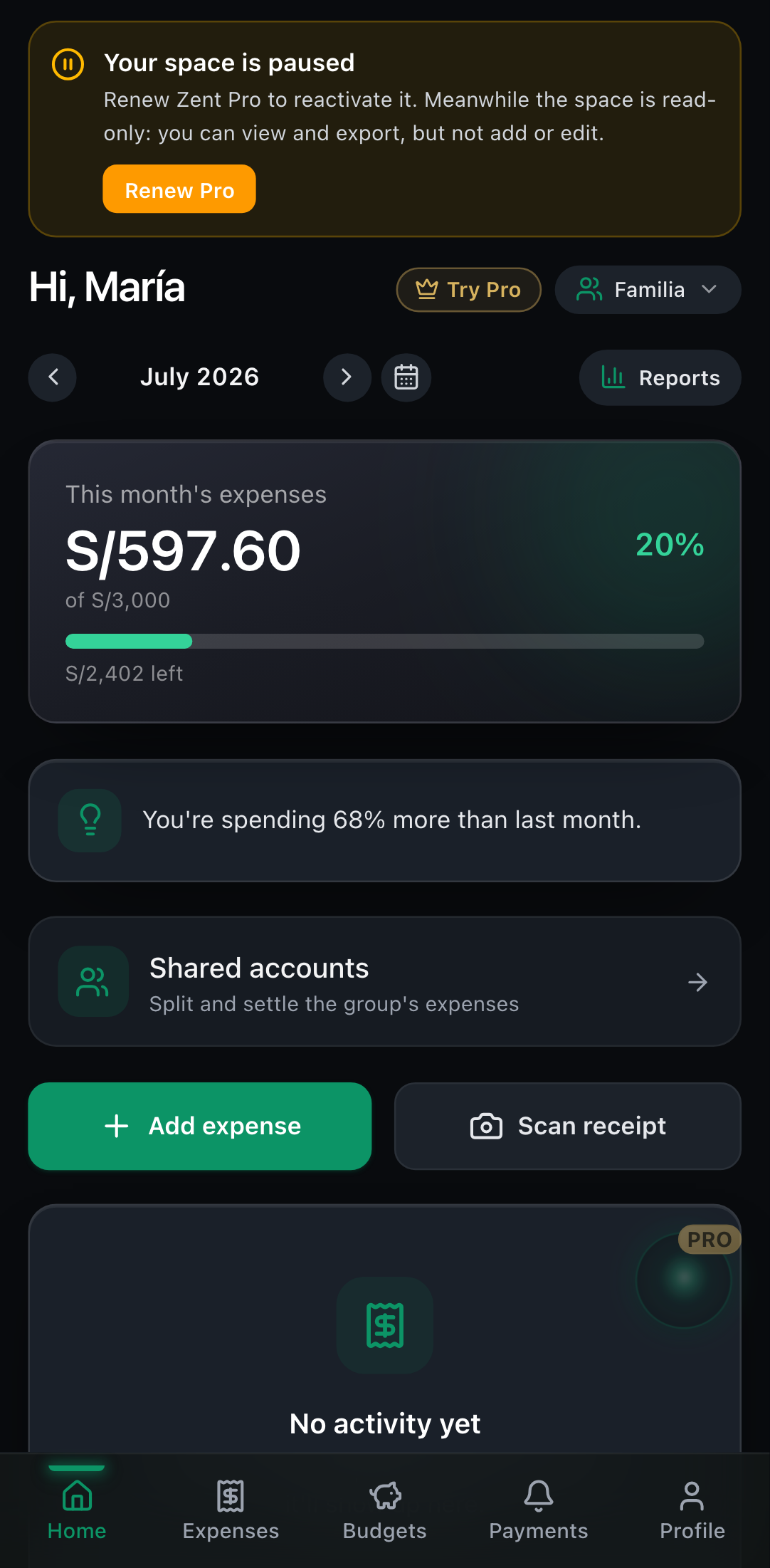
Home is your month at a glance: how much you've spent, how you're doing against your budget, which categories you spend most on, and which payments are coming up.
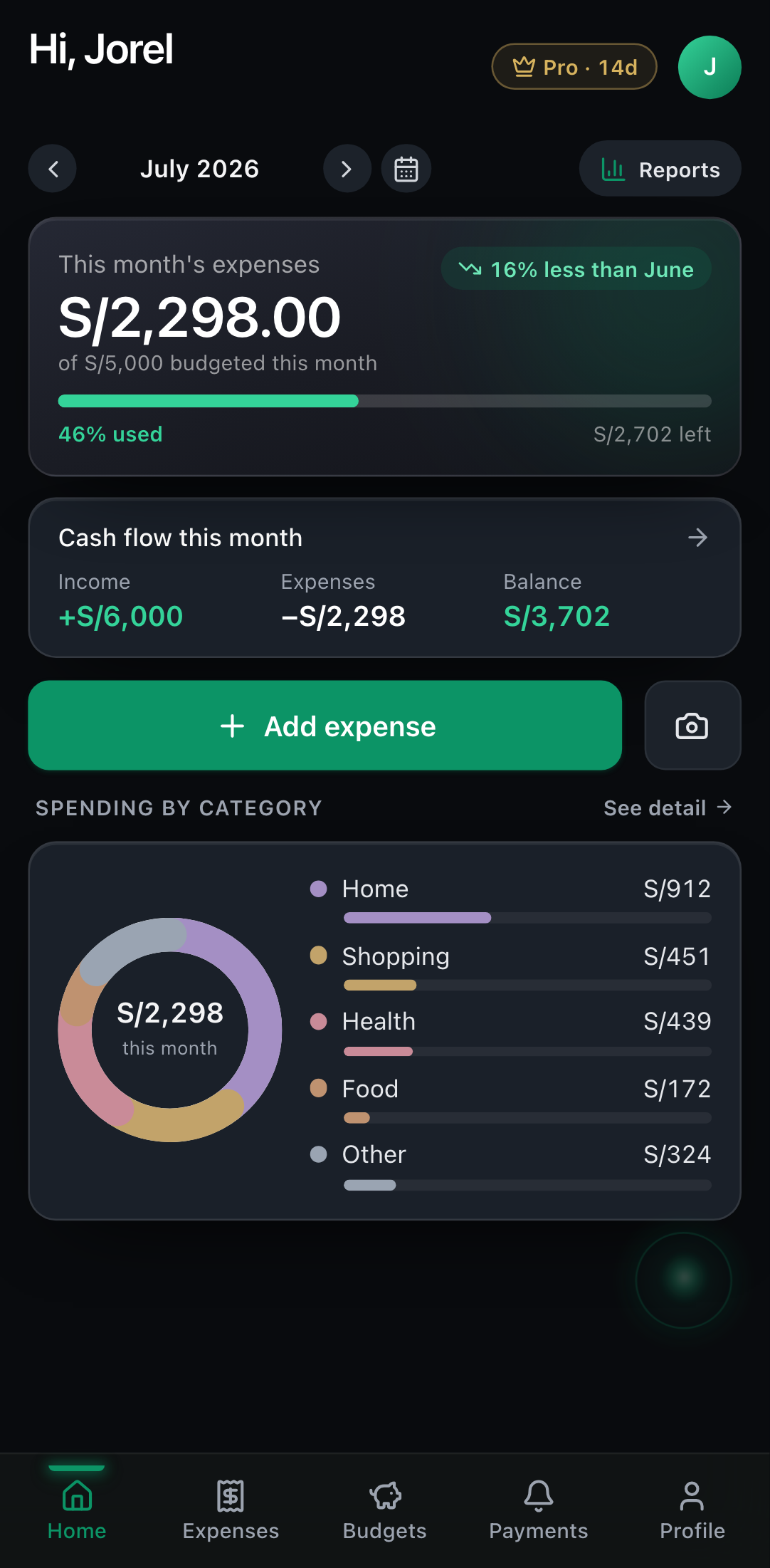
- ·Month total: the sum of your expenses in the current cycle, with how much of your budget you've used (e.g. '46% used') and how much is left.
- ·Vs. last month: a chip at the top-right tells you whether you're spending less or more than the previous month (e.g. '16% less than June').
- ·Cash flow: your income, expenses and balance for the period (shows once you log income).
- ·Spending by category: a donut chart with per-category mini-bars to compare at a glance. Tap See detail for the full list with progress vs. budget.
- ·Calendar: tap a day to see that date's expenses.
- ·Upcoming payments: your nearest reminders.
- ·Month navigation: use the arrows to view previous or next months.
The Add expense and Scan receipt buttons are right on Home for quick logging.
Log an expense
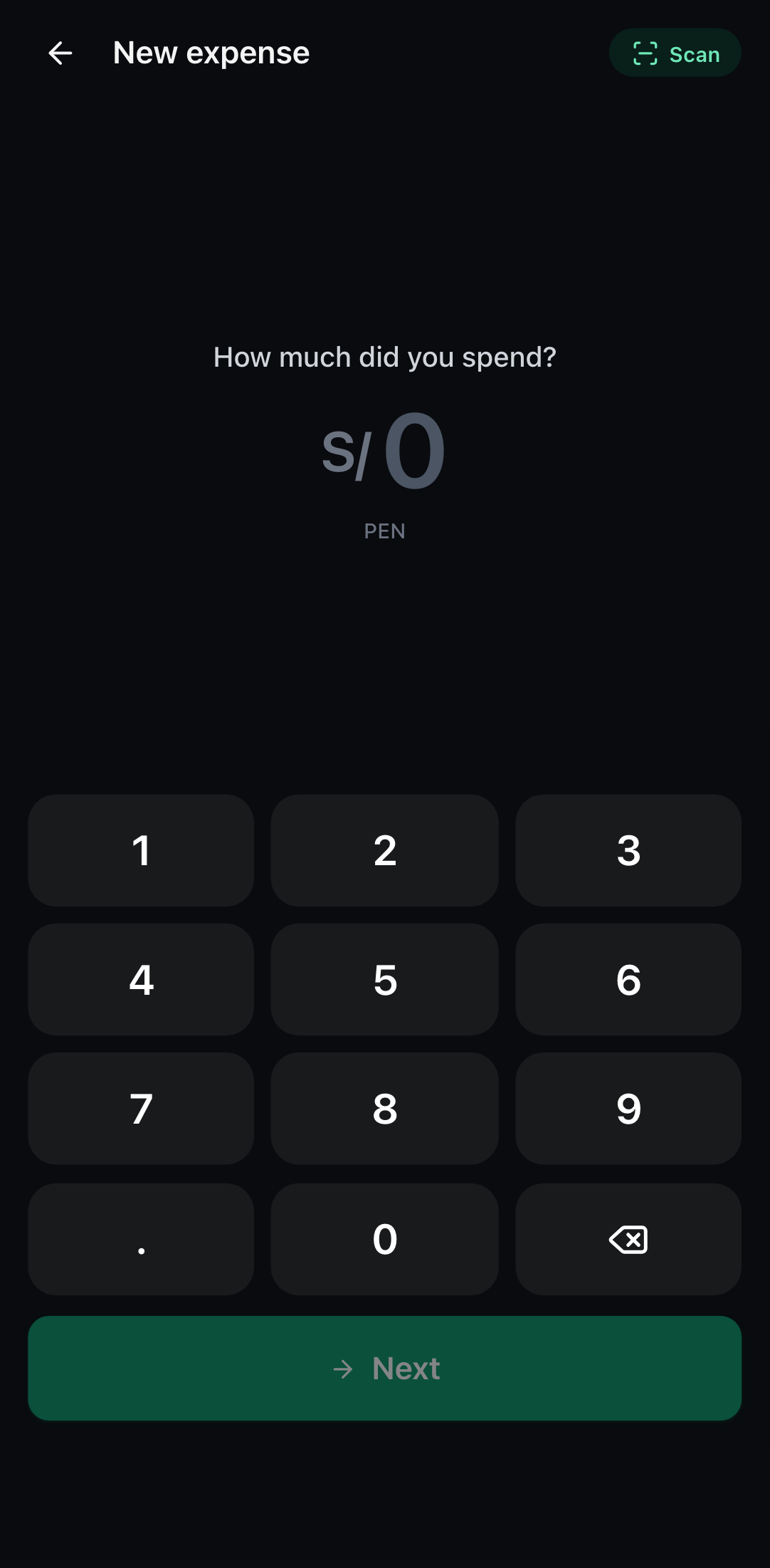
- 1Tap + Add expense (on Home or in Expenses).
- 2Enter the amount.
- 3Pick a category (Food, Transport, etc.).
- 4Adjust the date if it wasn't today and add a note if you like.
- 5Optional: attach the receipt photo.
- 6Tap Save. The expense appears immediately in your lists and on Home.
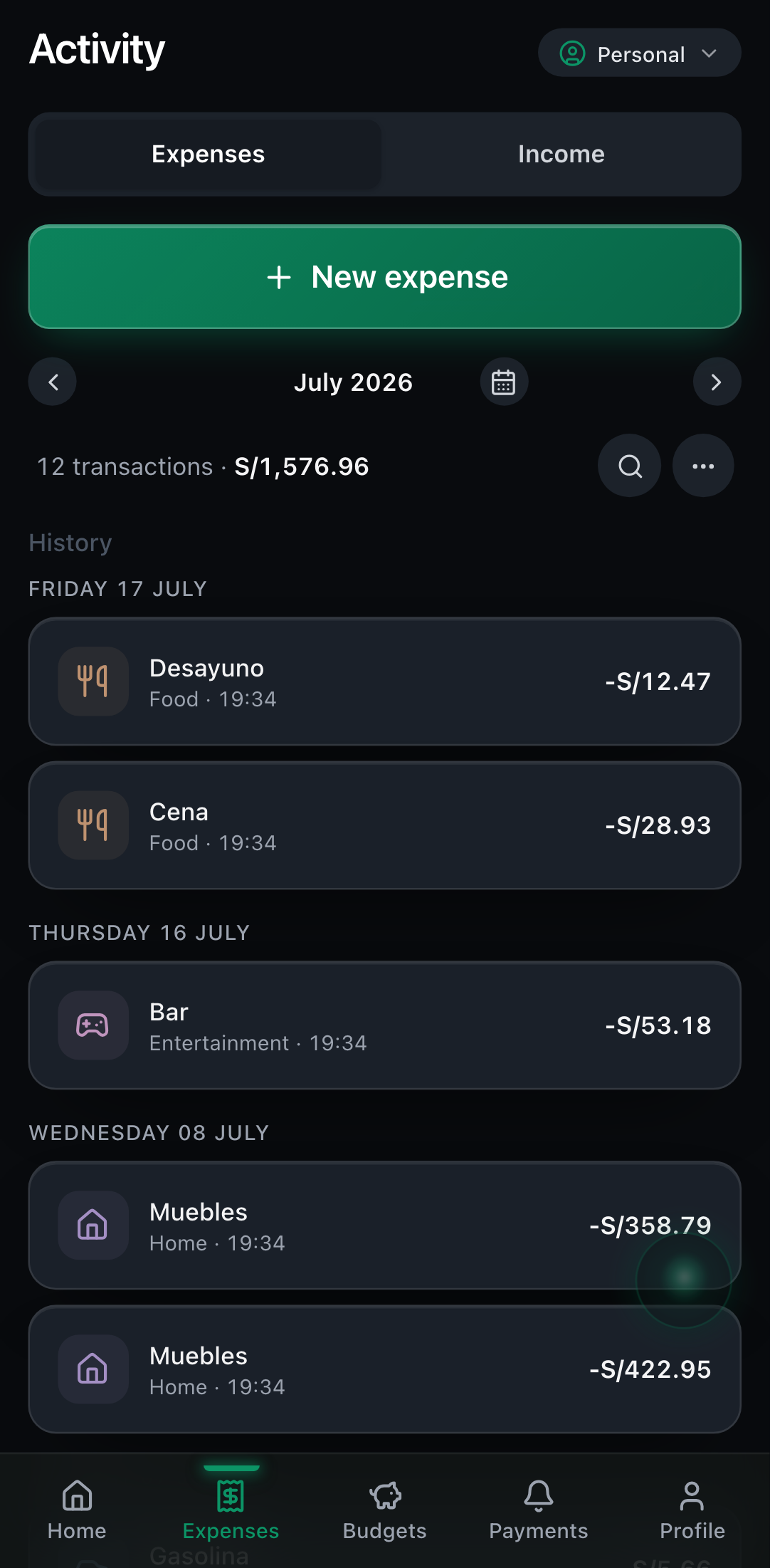
To edit or delete an expense, go to Expenses, tap the expense card, change what you need and save (or use Delete inside the edit screen).
In Expenses you can search by text (expense name) and filter by category to find entries fast, and export your data to a CSV file from the screen menu.
Scan receipts and voice assistant (AI)
Zent can read a receipt for you or create an expense when you dictate or type. These are optional features powered by Google's AI.
Scan a receipt:
- 1When adding an expense, tap Scan receipt.
- 2The first time we'll ask for your consent to send the image to the AI (you can revoke it later in Profile).
- 3Take the photo or pick one from your gallery.
- 4Zent extracts the amount and category; review and confirm.
Voice/text assistant:
- 1Open the assistant (floating button).
- 2Dictate or type, for example: "I spent 20 on food".
- 3The assistant understands the intent and prepares the expense; confirm it.
These features are part of Zent Pro. They require consent and only send what's needed to the AI to process your request.
Always review the result before saving, and don't use AI with other people's data without permission.
Categories
Zent ships with default categories (Food, Transport, Home, Health, etc.) and you can create your own.
- 1In Expenses, open the screen menu and tap New category.
- 2Enter the name, pick an icon and a color.
- 3Tap Create. You can now assign it to your expenses.
You can edit or hide default categories you don't use; Zent removes them from your lists without affecting your data.
Budgets
There are two budget types: an overall monthly cap (all your spending) and per-category caps.
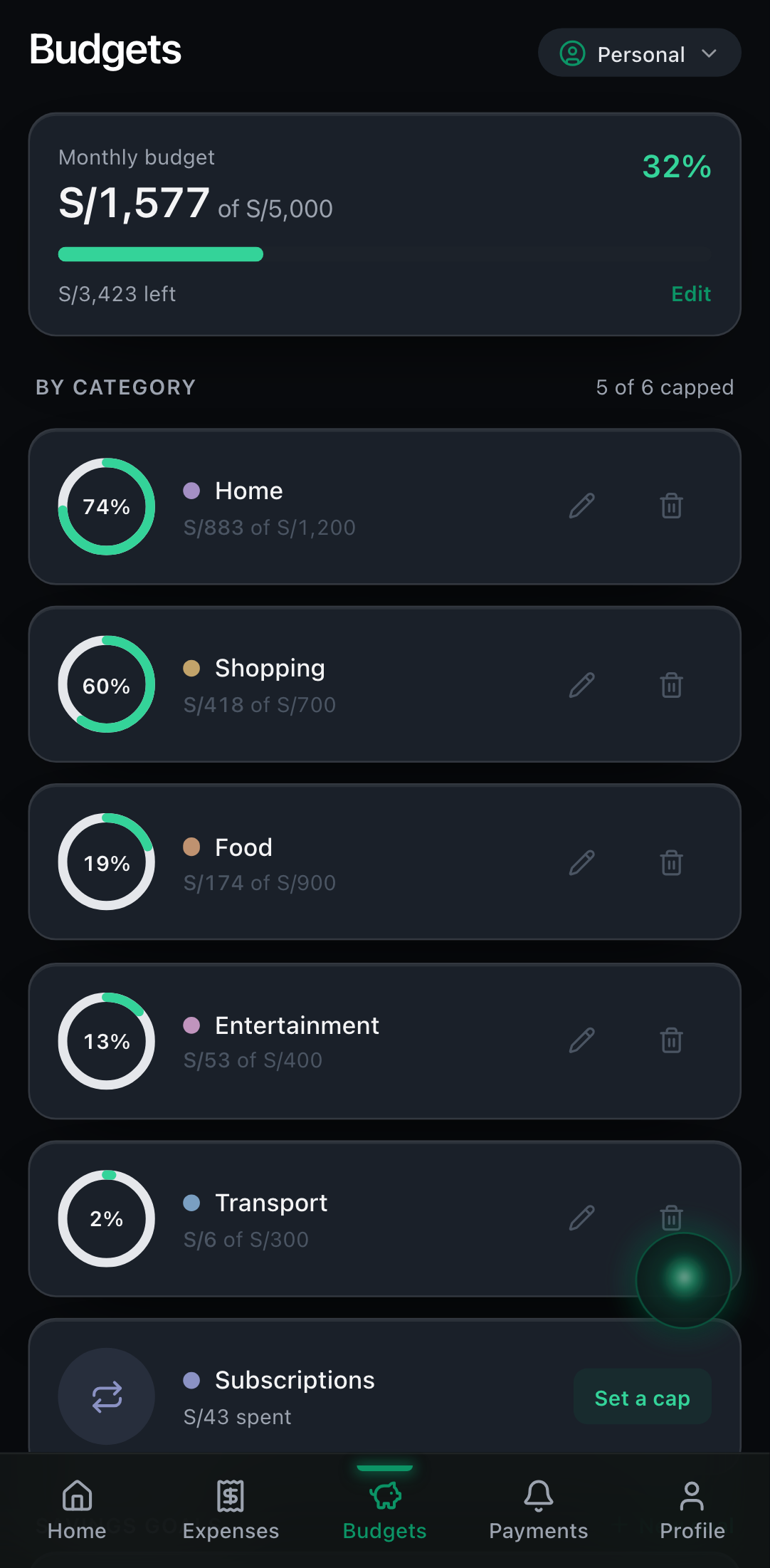
Monthly cap:
- 1On Home, tap Set monthly budget (or edit it later in Profile → Preferences).
- 2Enter the amount. You'll see an 'X of Y' progress bar that changes color as you approach the limit.
Per-category budget:
- 1Go to Budgets.
- 2Tap +, choose the category and the monthly amount.
- 3Save. You'll see each category's progress during the cycle.
Budgets reset on your month cutoff day (see Month cycle).
Savings goals
- 1In Budgets, go to the Goals section and tap +.
- 2Give it a name (e.g. 'Trip'), a target amount, a color and, if you want, a target date.
- 3Save. You can contribute money to the goal and track your progress.
Income
Log your income (salary, freelance, etc.) to see your cash flow and what's left.
- 1Go to Income and tap +.
- 2The first time we'll ask for your consent: your income is sensitive data (Peru's Law No. 29733) and we only process it with your permission, revocable in Profile.
- 3Enter the source, amount and date. Save.
Your income is NOT sent to AI unless you use those features (with their own notice). You can use Zent without logging income.
Income also works inside a collaborative space (to keep the group's books: business, roommates, etc.). In a space you can export a reconciliation: a file with all the group's movements (expenses and income) plus the result —total income, total expenses and net—.
Payment reminders and cards
Zent reminds you of payments with local notifications on your phone (no internet needed to notify you).
Create a reminder:
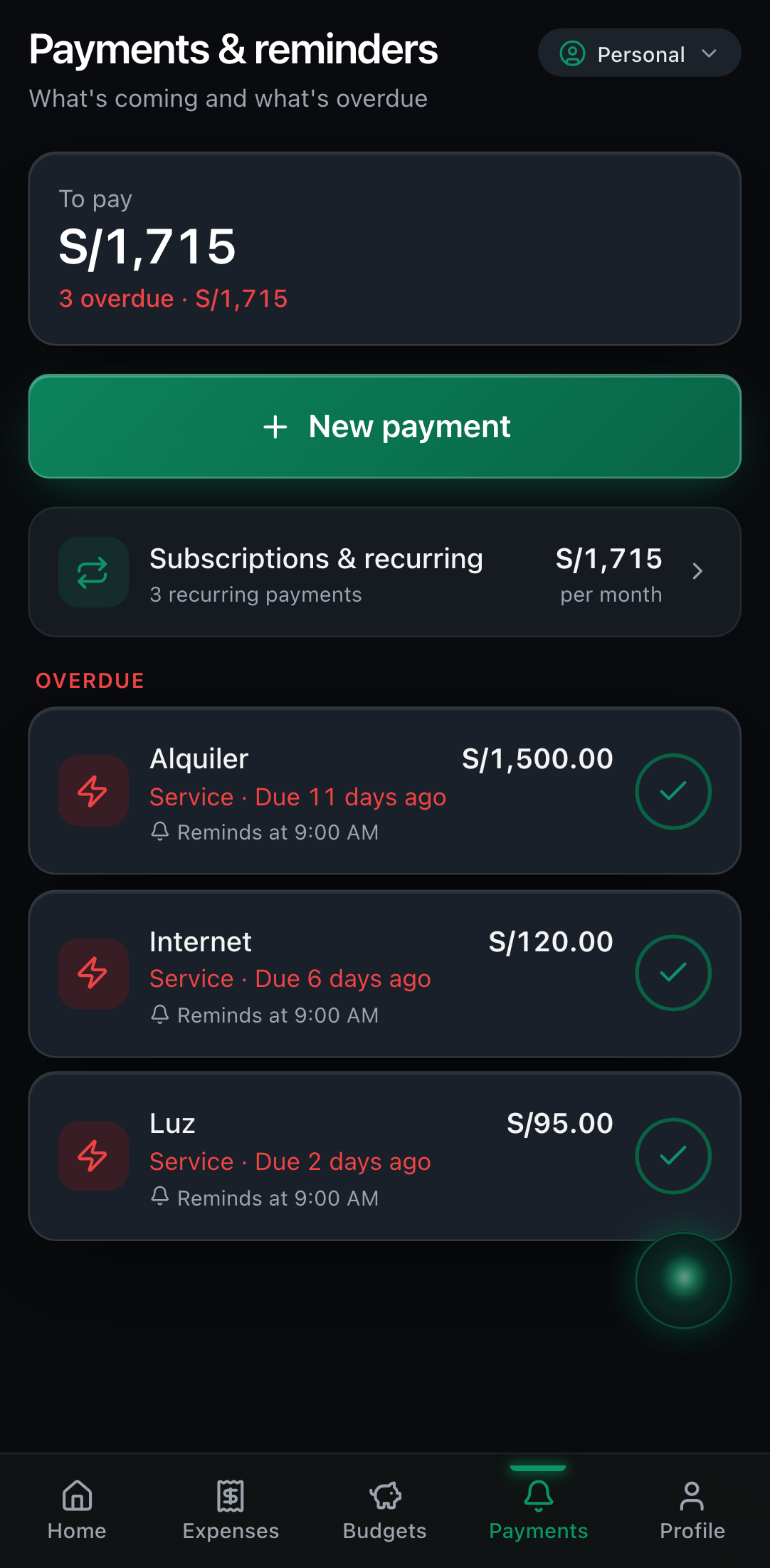
- 1Go to Payments and tap + Add payment.
- 2Enter the name (e.g. 'Rent'), the amount, the due date and the frequency.
- 3Choose the time for the alert and how many days in advance.
- 4Save. You'll get up to three alerts: early, on the due date, and —if still pending— one day after.
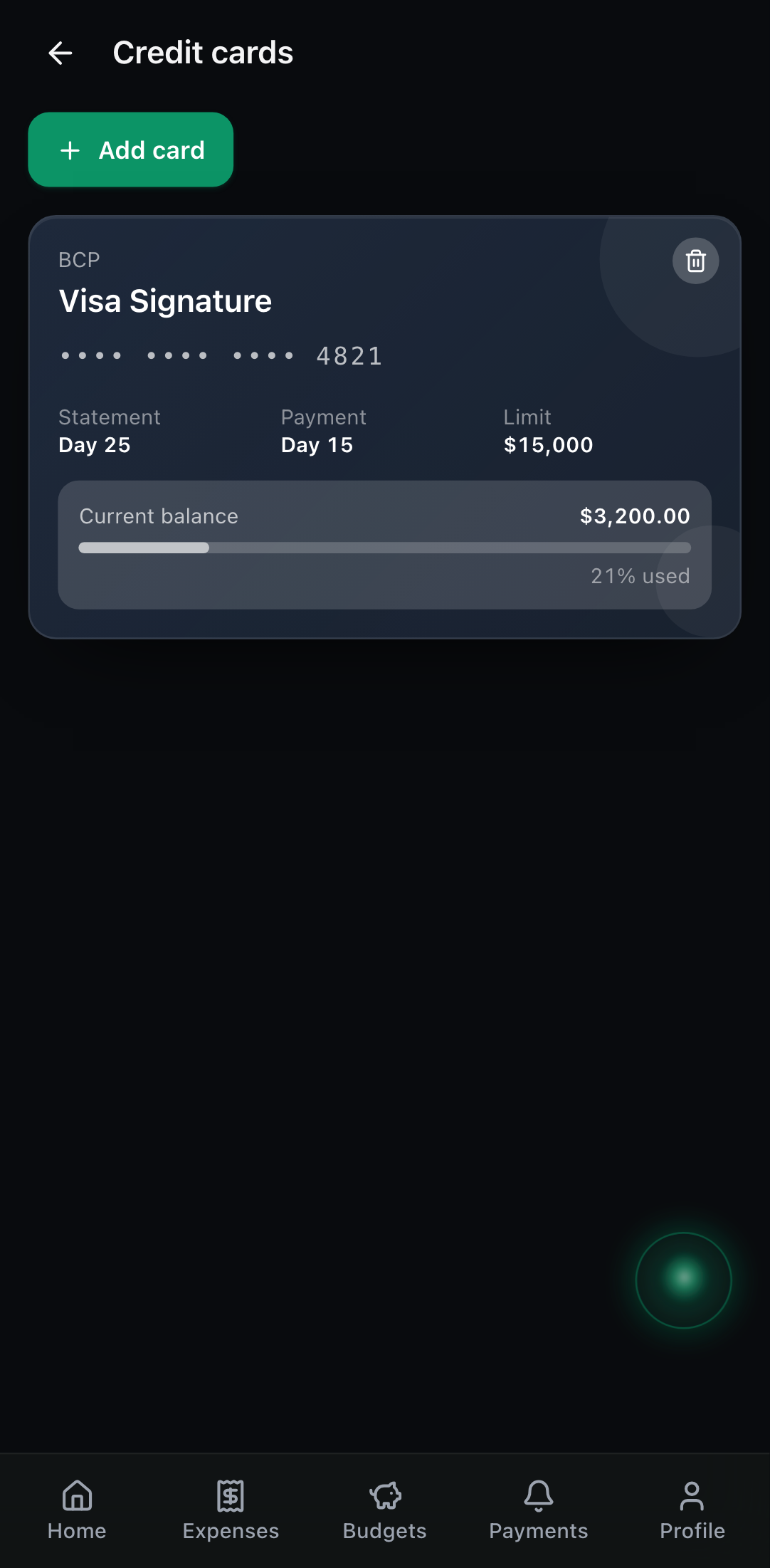
Cards: on the cards screen you add your cards (bank, name, last 4 digits, closing and payment dates). Zent automatically creates their monthly reminder.
Edit, delete or fix a payment: tap any payment card (pending or paid) to open its editor; change what you need or use Delete.
When you mark a payment as paid, its pending alerts are canceled. Marked it by mistake? In the Paid section, tap that payment's undo button to set it back to pending (its alert is rescheduled).
Reports
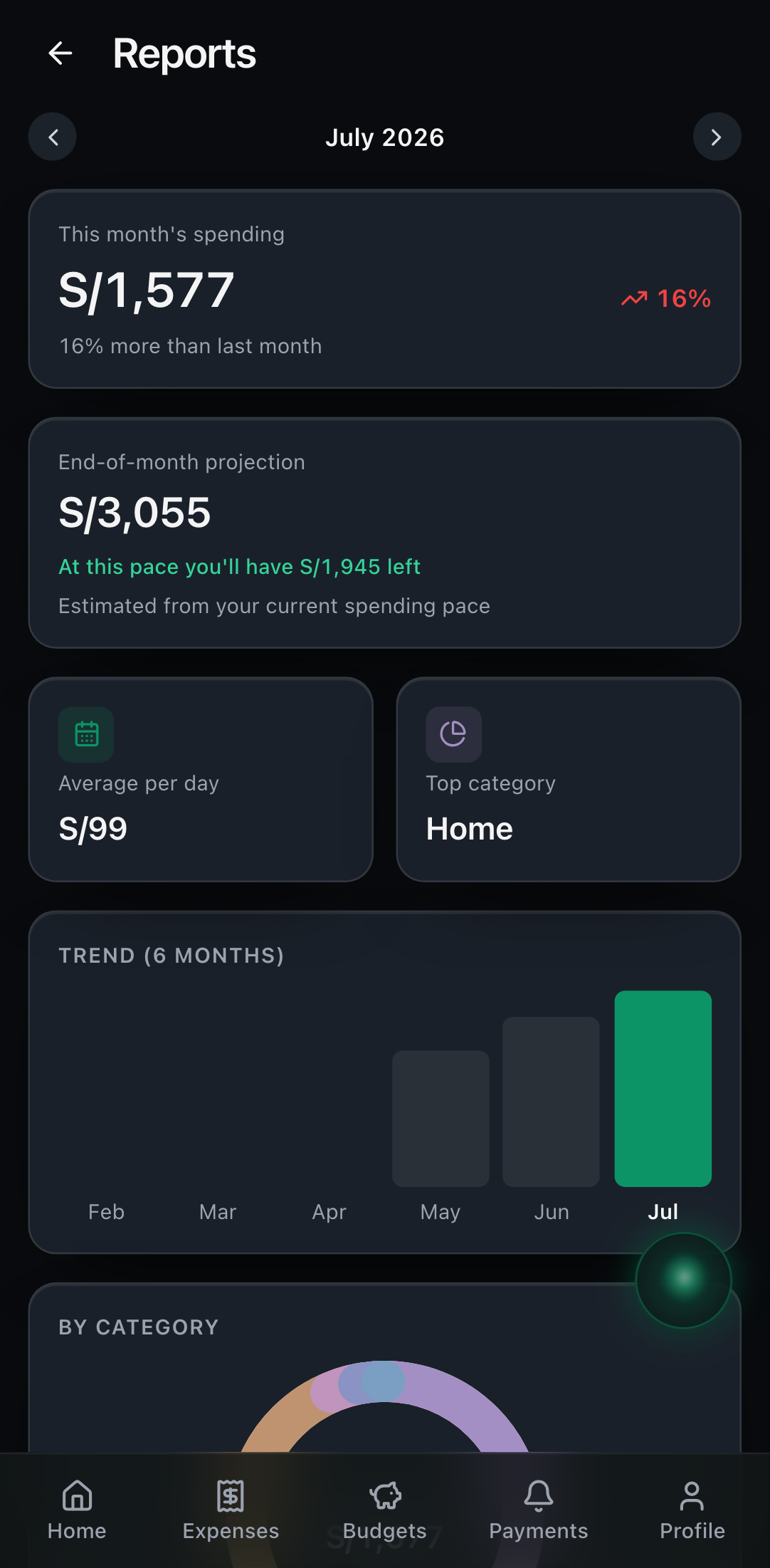
In Reports you see your expenses by period in more detail, to understand your habits. It's a Zent Pro feature.
Collaborative spaces
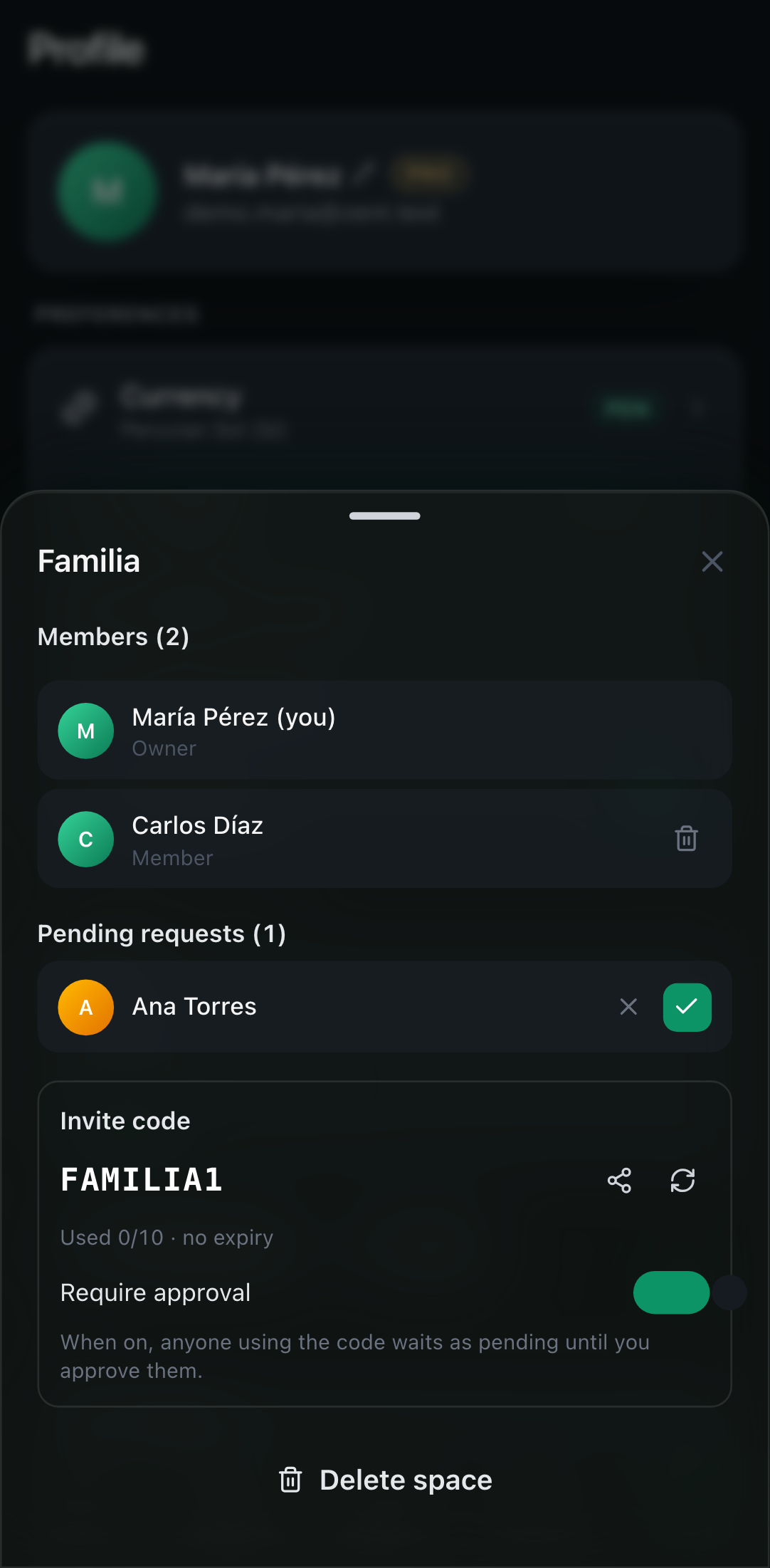
A collaborative space lets you track shared expenses with other people (family, roommates, team). What you log in a space is visible to its members; your personal space is never shared.
How payment works: the space owner (its creator) needs Zent Pro and 'sponsors' the space. Invited members join for free.
Create a space (owner):
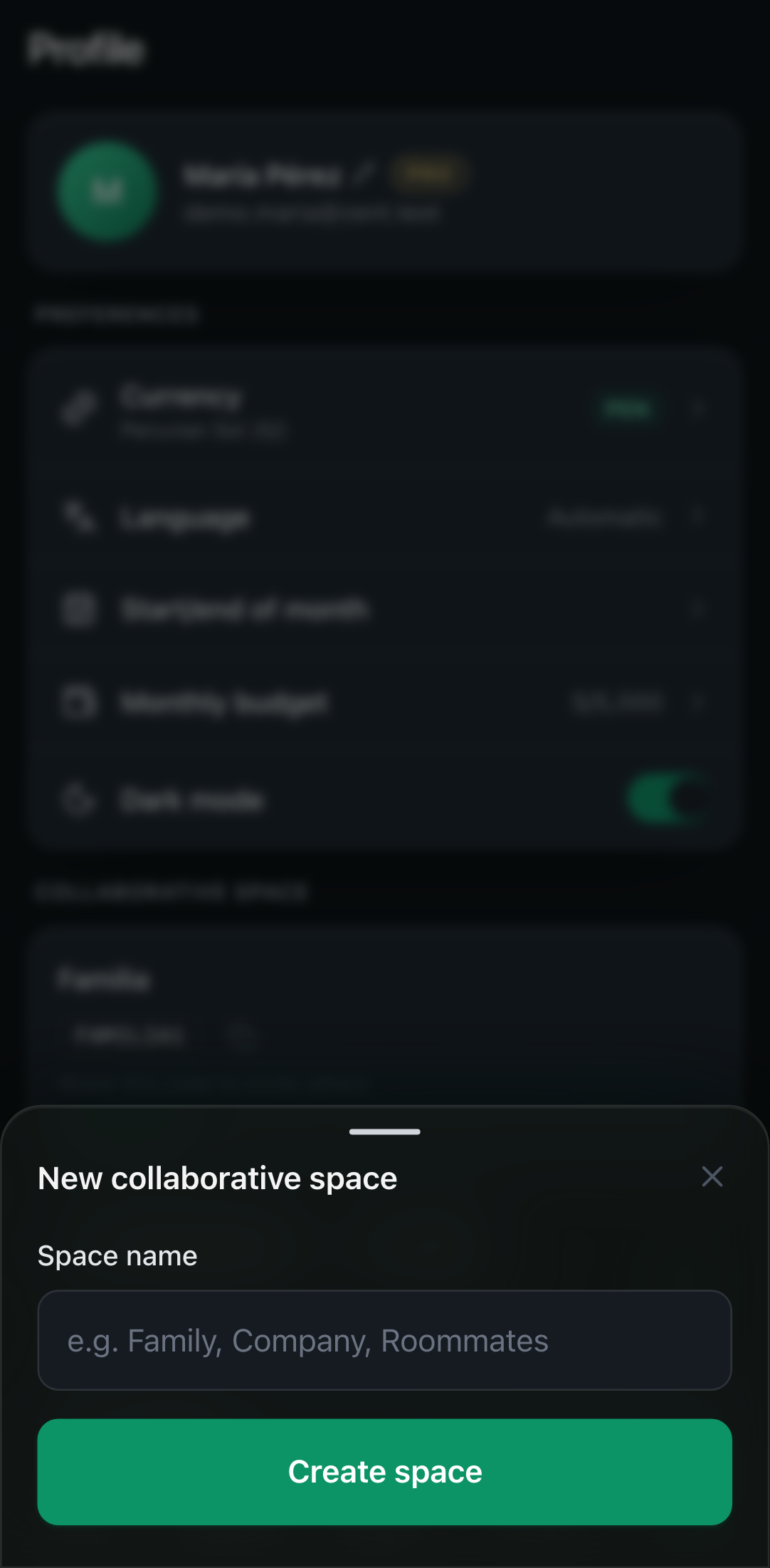
- 1Go to Profile → spaces section → Create space (requires Pro).
- 2Give it a name (e.g. 'Family').
- 3Share the invitation code with the people you want to invite.
Join a space (member):
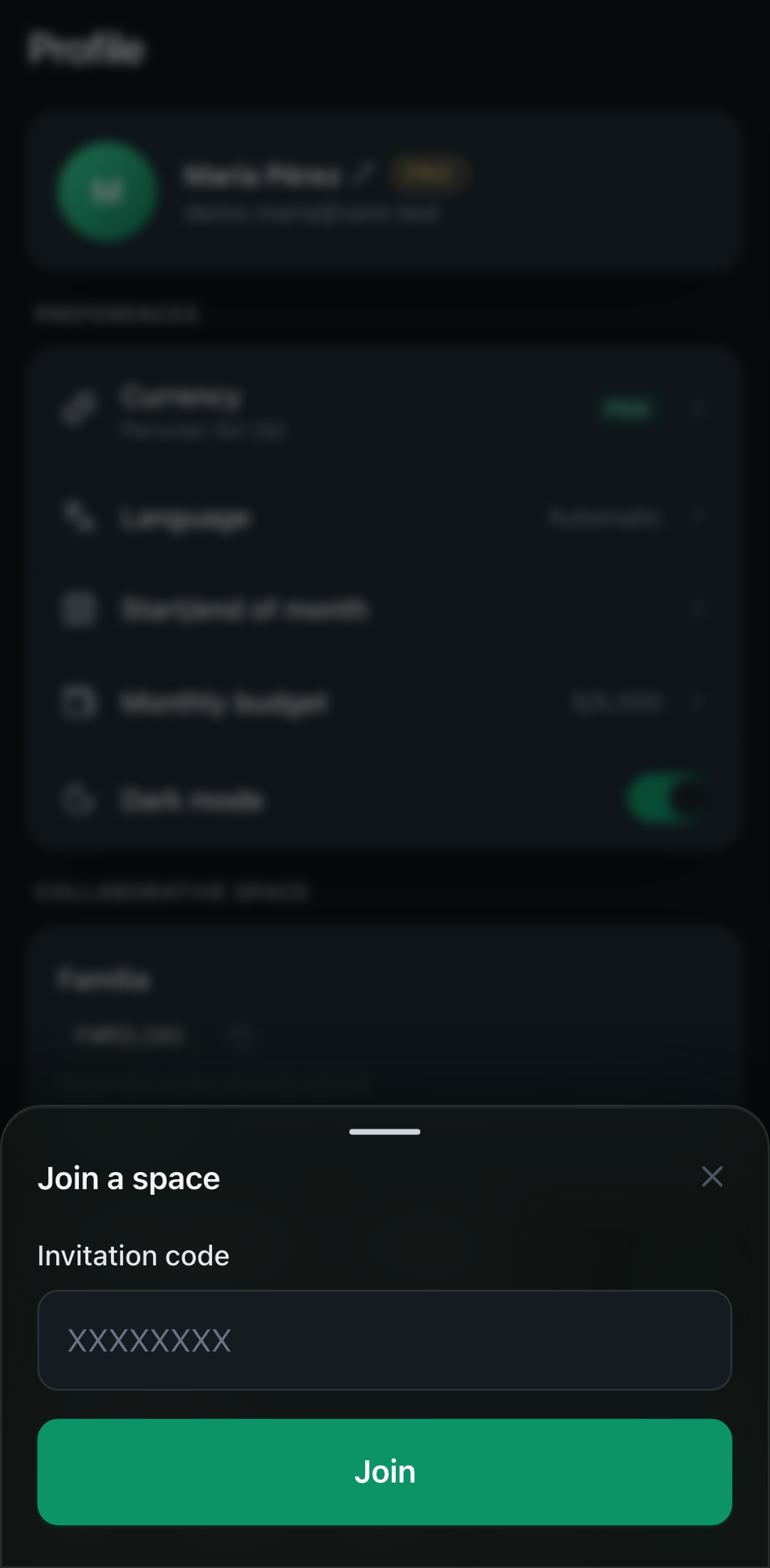
- 1Go to Profile → Join and enter the code.
- 2If the space requires approval, your request stays pending until the owner approves it.
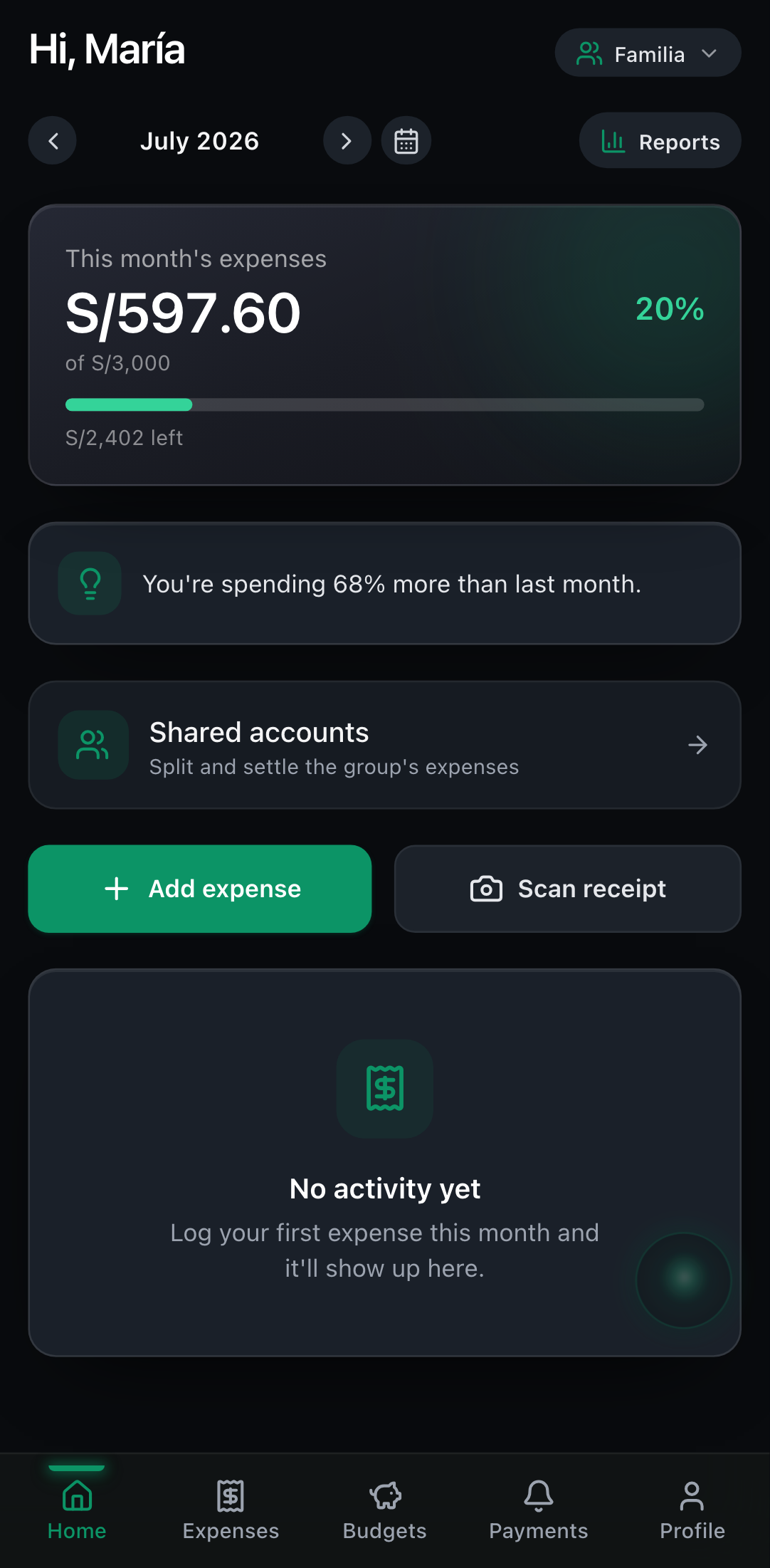
Switch context: use the space switcher (at the top) to move between your Personal space and your shared spaces.
If the owner stops having Pro, the space becomes read-only (everyone can view and export, but not add). It is never deleted and reactivates instantly when the owner renews.
Shared accounts (split & settle)
A collaborative space works like a group expense ledger (petty-cash style): by default, each expense you log is simply recorded, not split between anyone.
Split an expense (optional): when logging an expense in the space, turn on Split this expense to divide it. There you pick who paid and among whom it's split — equally, by amounts, or by percentages. Only the expenses you split count toward debts.
In Shared accounts (Split) you see:
- ·Total shared spending and each person's share.
- ·You're owed / You owe: your balance within the group.
- ·Who owes whom: the list of pending debts between members.
Settle a debt:
- 1Enter the space and open Shared accounts (Split).
- 2Review who owes whom.
- 3Tap Settle on the debt that was paid and confirm (e.g. 'Ana paid Luis $50').
- 4The balance updates; when nothing is pending you'll see 'All settled'.
Each payment stays in the Payment history with its date. Recorded one by mistake? Tap undo and the balance reflects the debt again.
Export the group reconciliation: from the Expenses menu inside the space, tap Export group summary to download a file with all movements (expenses and income) plus the summary —total income, total expenses and net—. Handy for squaring up a business, roommates or a night out with friends.
Applies only to collaborative spaces; your personal space doesn't split or export summaries.
Custom month cycle
Does your financial 'month' not start on the 1st? (say you get paid on the 25th). Zent lets you set your month start or cutoff, and everything —total, budgets, calendar— adjusts to that cycle.
- 1Go to Profile → Month start.
- 2Pick the day by Start or by Cutoff (they're the same continuous boundary).
- 3You'll see a preview of the range. Save.
Zent Pro (trial and subscription)
Zent is free for 14 days with everything included. After that, it's paid to keep logging.
- ·Trial (14 days): full access to everything.
- ·When the trial ends: the personal app becomes read-only — you can view and export your data, but to add or edit you need to subscribe. Your data is always safe.
- ·With Pro: unlimited features + collaborative spaces, reports, export, AI assistant/scanner and priority support.
- 1Open the paywall from Home (plan pill) or from Profile → See Pro.
- 2Choose the plan (yearly or monthly) and confirm the purchase in your store (App Store / Google Play).
- 3Once subscribed, everything reactivates instantly.
Privacy, security and your data
- ·Face ID / Touch ID lock: enable it in Profile to protect the app. Your biometric data never leaves your phone.
- ·Consents: in Profile you can view and revoke the AI/OCR consent and the income consent separately.
- ·Export your data: from Expenses you can export to CSV anytime.
- ·Delete your account: in Profile → Delete account. Your data is permanently erased.
Zent does not collect your location, use ads or track you across apps. See the Privacy Policy for details.
Preferences
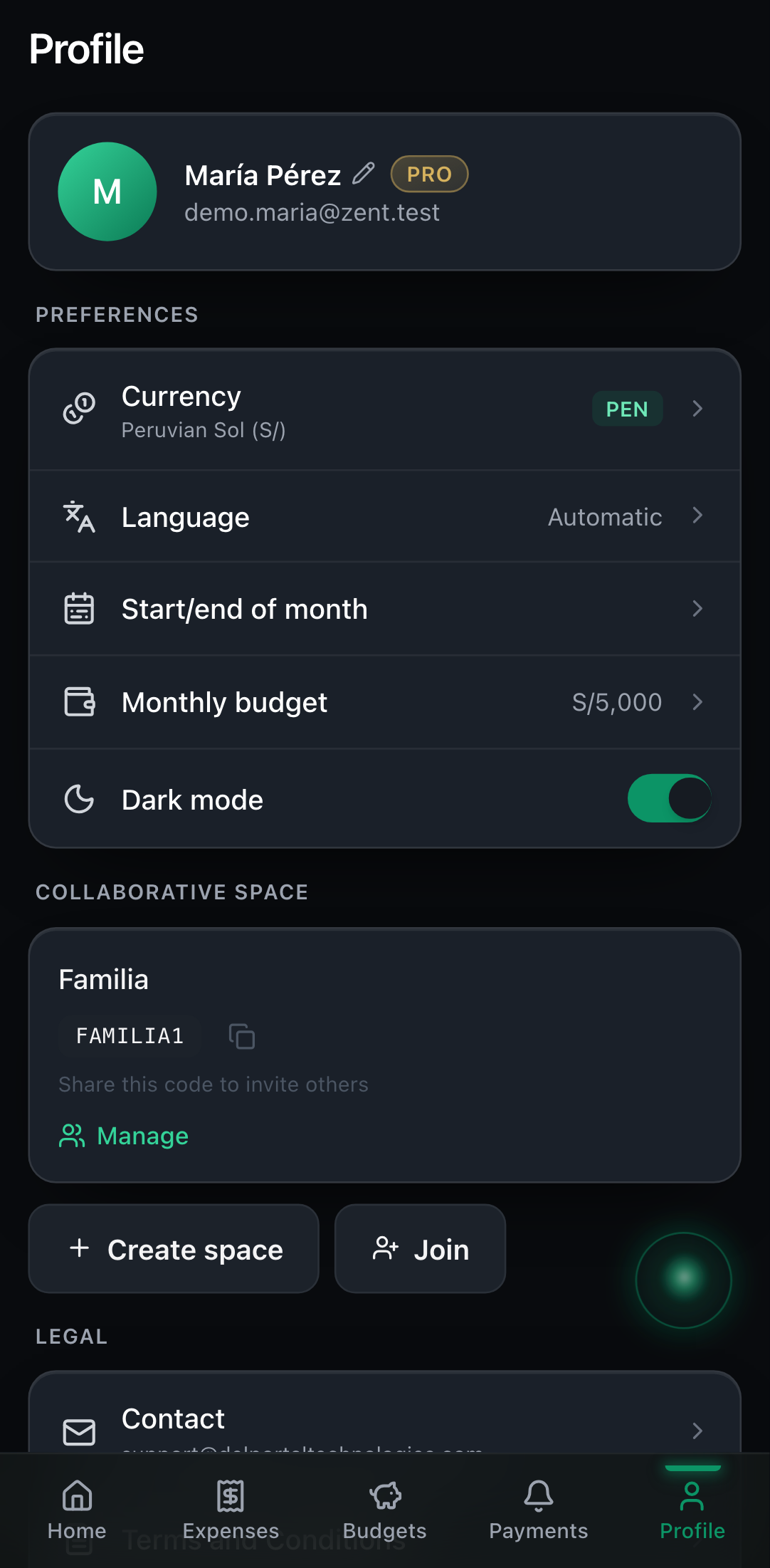
- ·Name: tap your name in Profile (pencil icon) to edit it.
- ·Currency: choose your currency in Profile.
- ·Language: Spanish or English (or automatic).
- ·Theme: light or dark (Zent starts in dark by default).
- ·Month start: set your cycle (see above).
- ·Monthly budget: set or edit your overall cap.
Frequently asked questions
Do I need to connect my bank? No. Zent doesn't connect to banks; you log your transactions.
Does it work offline? You can view already-loaded data and reminder notifications work locally. To save new changes you need a connection.
What happens to my data when the trial ends? Nothing is lost: it stays available to view and export; to add/edit again, you subscribe.
Do space members pay? No: the owner pays and invited members join that space for free.
Can I revoke AI or income use? Yes, in Profile, separately and whenever you want.
Can I use my account on several devices? Your account works on one device at a time: if you log in on another, the previous session is signed out for security.
Support and contact
Need help? Write to us and we'll assist. For privacy matters or your data: legal@delportaltechnologies.com.
Need help?
Write to us and a human will answer — tell us what you tried and what happened.