VaultOSUser manual
User manual
VaultOS User Manual
Everything the app does, step by step, with screenshots.
Last updated: 2026-07-07
Want VaultOS on your machine?
Leave us your email and we'll deliver the installer for macOS or Windows, along with your install guide.
Contents
Welcome to VaultOS
VaultOS is your personal vault for passwords, API keys, tokens, server data and technical notes. Everything lives encrypted on your machine: no cloud, no accounts, no tracking. The promise is simple: Search. Find. Copy. Done.
This manual walks through every feature step by step. It works the same on macOS and Windows except where a platform note says otherwise; shortcuts are shown in both variants (⌘K/Ctrl+K).
Looking for something specific? Use the table of contents on the left, or search this page with ⌘F/Ctrl+F.
Install and first launch
The installer is currently delivered on request: ask for it with the Request my download button (above) and we'll reach out with the file for your system along with this guide.
macOS · Download the .dmg, open it and drag VaultOS into Applications. The first time, macOS may ask you to confirm opening an app downloaded from the internet.
Windows · Download VaultOS-Setup.exe and run it. The installer lets you pick the install folder. If SmartScreen shows "Windows protected your PC", click More info → Run anyway (this happens because the installer is not yet digitally signed; always verify you downloaded it from delportaltechnologies.com).
Your vault is stored in your user profile, not in the app folder. On Windows, uninstalling VaultOS never deletes your vault; reinstalling finds it again.
Create your vault
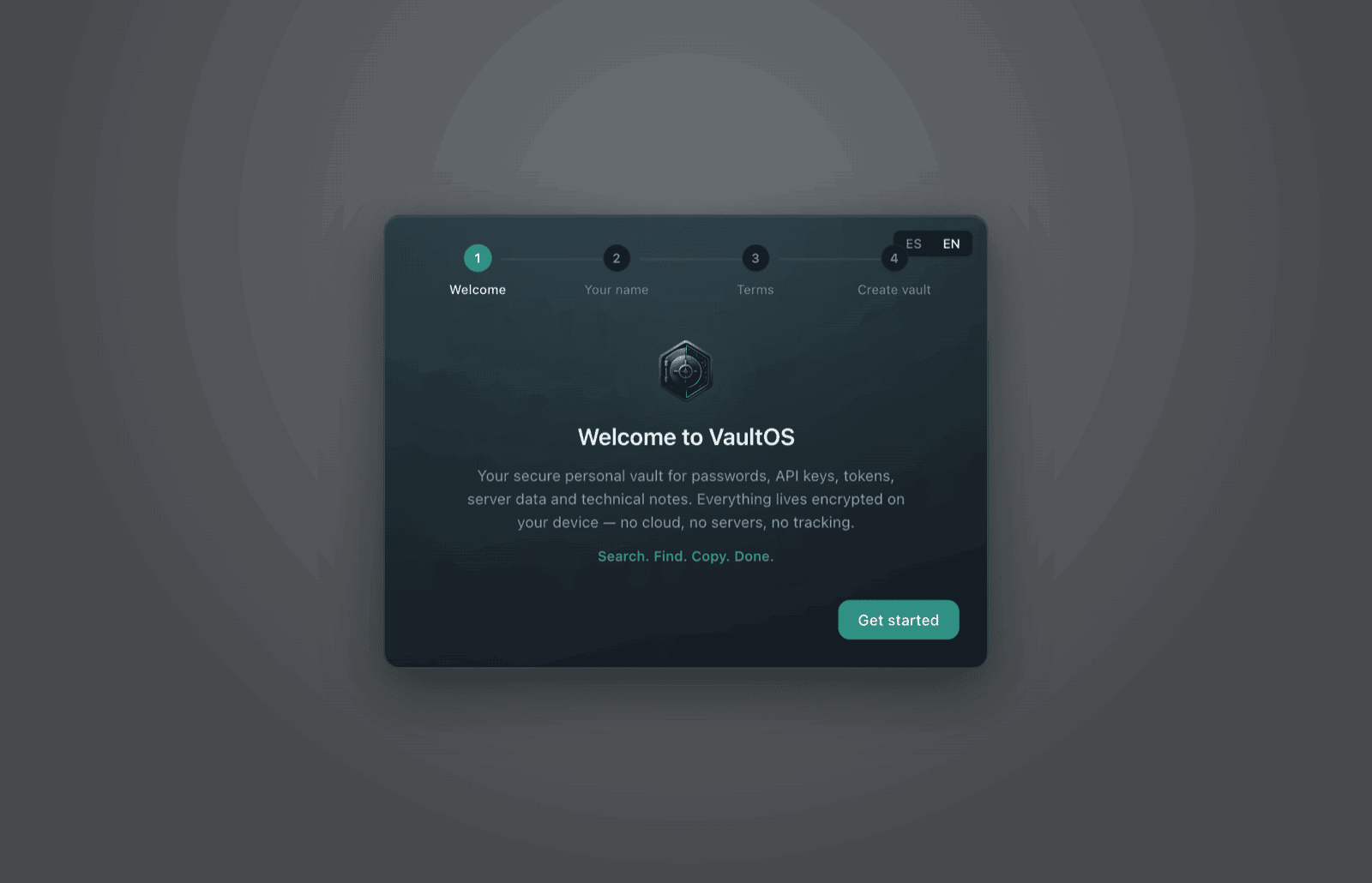
The first launch greets you with a 4-step wizard: welcome, your name (personalization only — it stays on your machine), terms, and vault creation.
The last step sets your master password: the only key to your vault. Make it long (8 characters minimum; a passphrase is best) and never reuse it anywhere else.
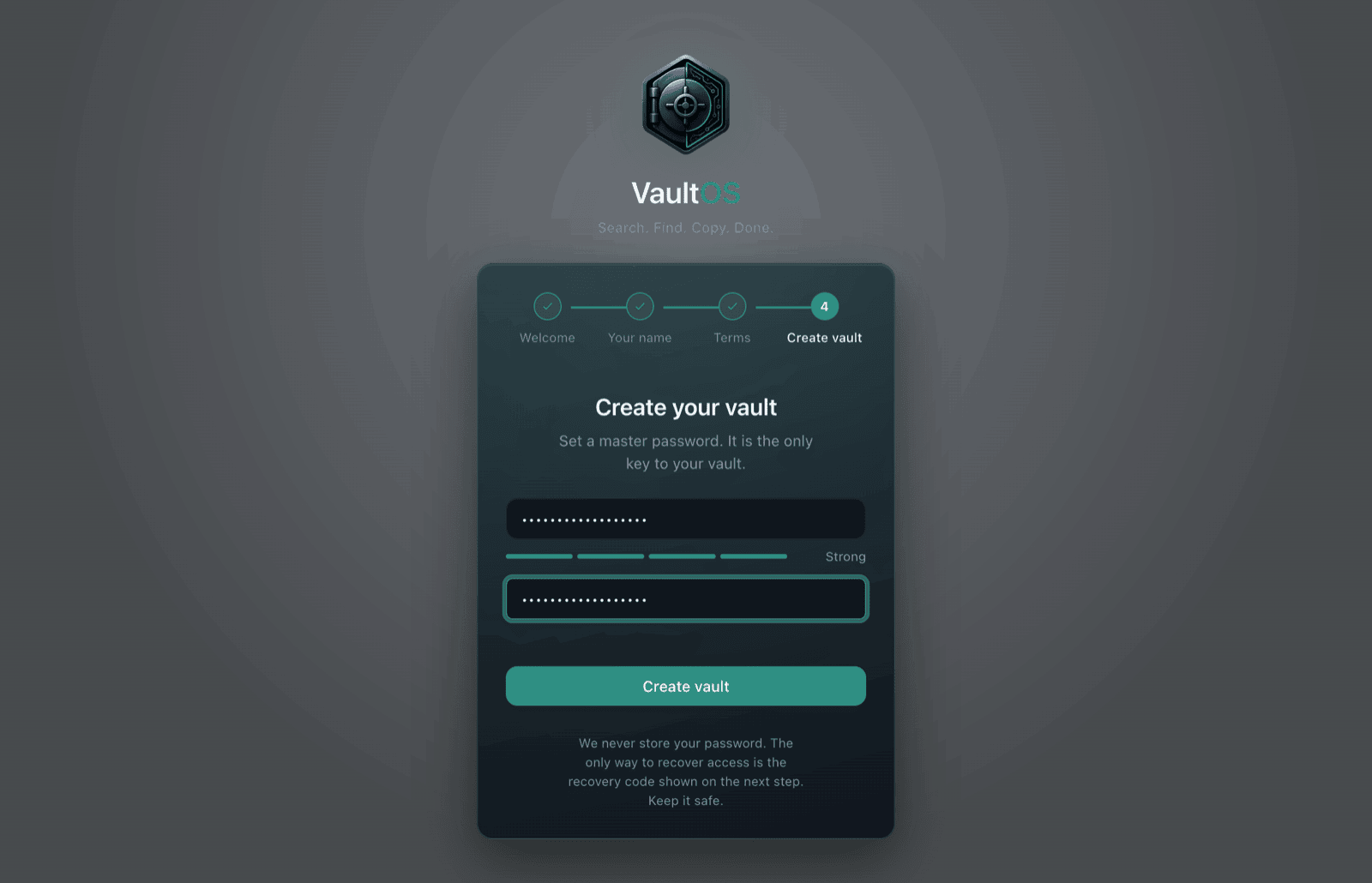
VaultOS never stores your master password anywhere and cannot recover it for you. If you forget it, the only way back in is the recovery code from the next step.
Your recovery code
Right after creating the vault, VaultOS shows you a recovery code exactly once (format XXXXX-XXXXX-XXXXX-XXXXX). Copy or download it and keep it somewhere safe away from your machine — on paper is a great choice.
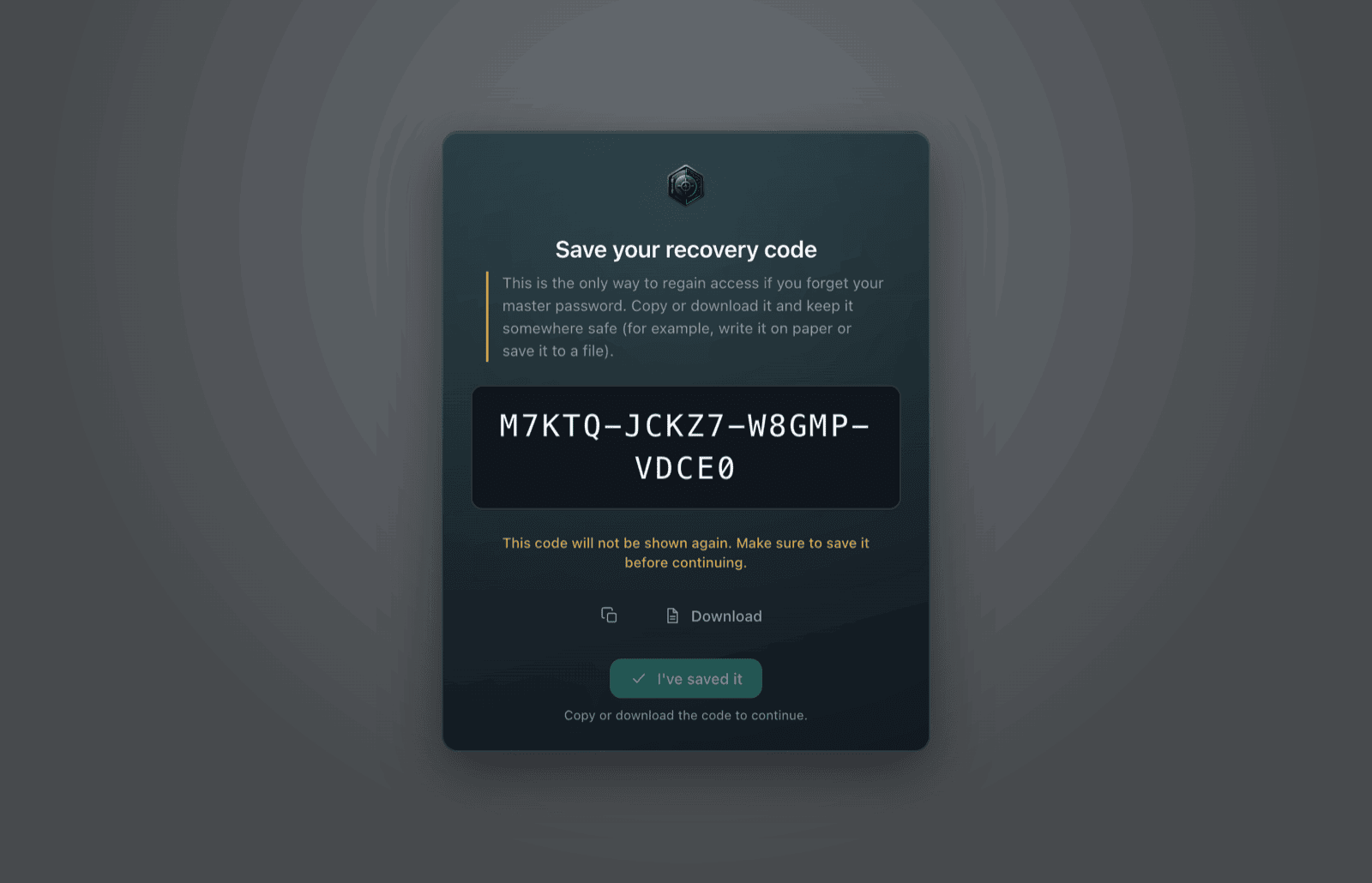
The code is shown only once. With it you can recover access if you forget your master password; without it there is no back door — nobody (including us) can open your vault.
Unlock, lock and auto-lock
When you open the app (or come back after a lock), type your master password and press Enter.
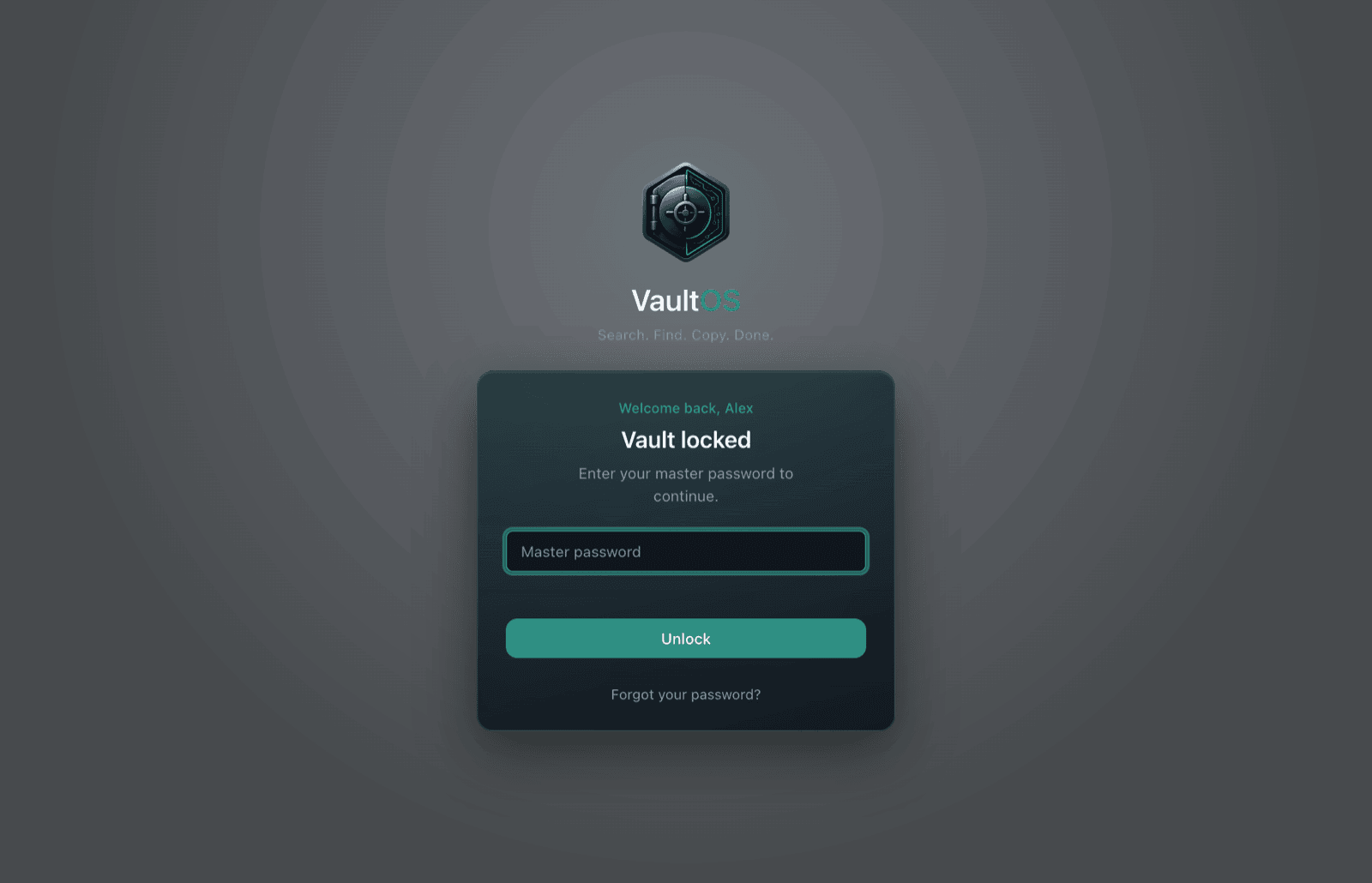
- ·Auto-lock: after a period of inactivity (configurable in Settings, 5 minutes by default) the vault locks itself.
- ·Lock now: the button at the bottom of the sidebar locks immediately.
- ·When your machine sleeps or locks (lid closed, Win+L), VaultOS locks too.
macOS · You can enable Touch ID in Settings to unlock with your fingerprint instead of typing. It is a convenience on top of the master password — never a replacement.
Windows · On Windows, unlocking is master password only in this version (Windows Hello is planned).
The main window
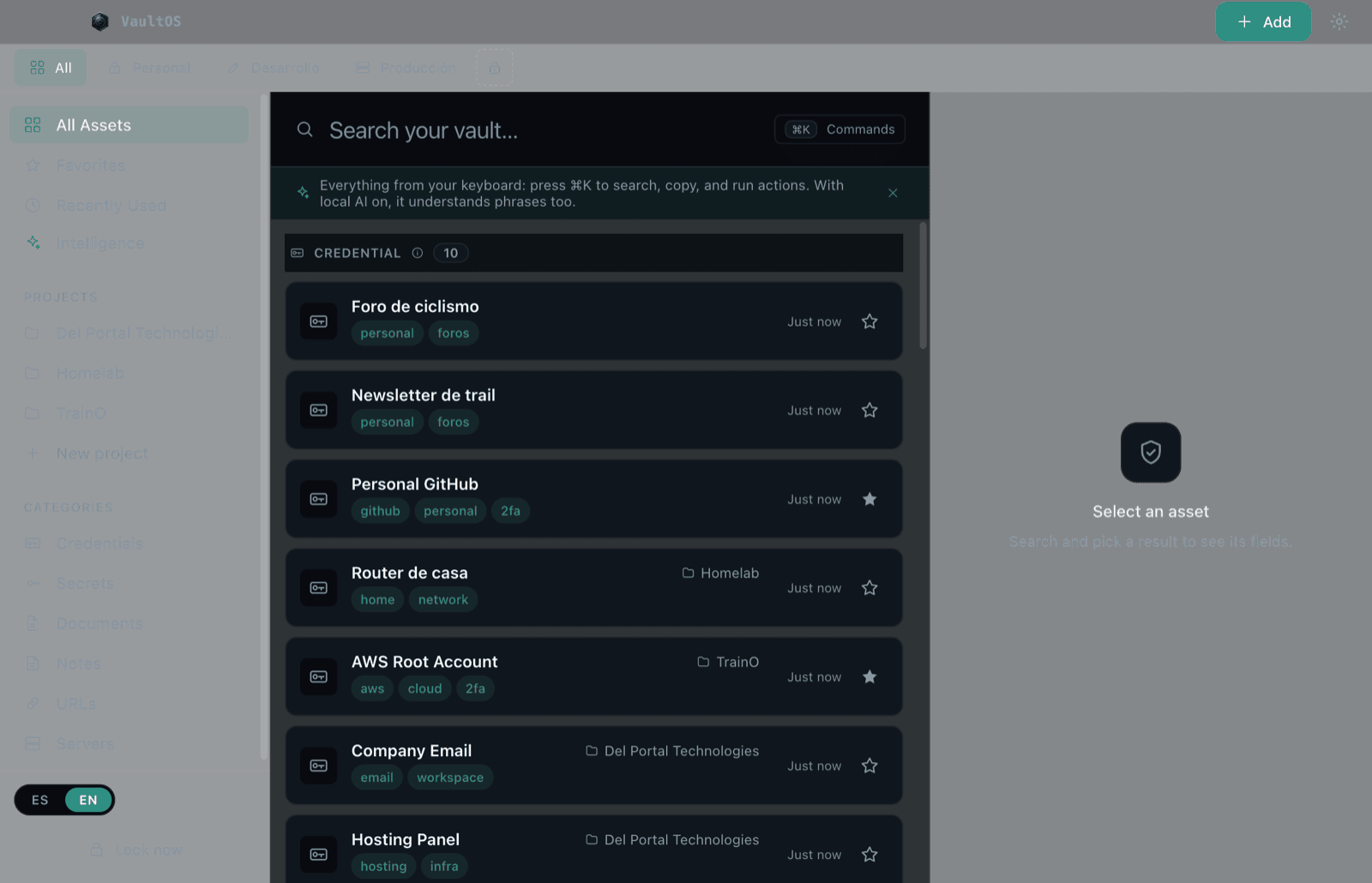
- ·Sidebar (left): quick views (All, Favorites, Recently Used, Intelligence), your projects, and categories by item type.
- ·Space tabs (top): separate environments — e.g. Personal, Development, Production. Switch with a click or ⌘1/Ctrl+1 through ⌘9/Ctrl+9.
- ·Center: the search bar and results list. It is the front door to everything.
- ·Detail panel (right): the selected item's fields, with copy and reveal buttons.
- ·Bottom left: the ES/EN language toggle and the Lock now button.
Create items manually
- 1Click Add (top right) and choose Create manually — or press ⌘N/Ctrl+N.
- 2Pick a type: credential, secret, document, note, URL or server. Each type comes with its typical fields.
- 3Fill in the title and whatever fields you need: username, password, URL, 2FA code, notes. Add field creates custom fields; Advanced adjusts the sensitivity level.
- 4Hit Save. The item is encrypted into your vault and shows up in the list instantly.
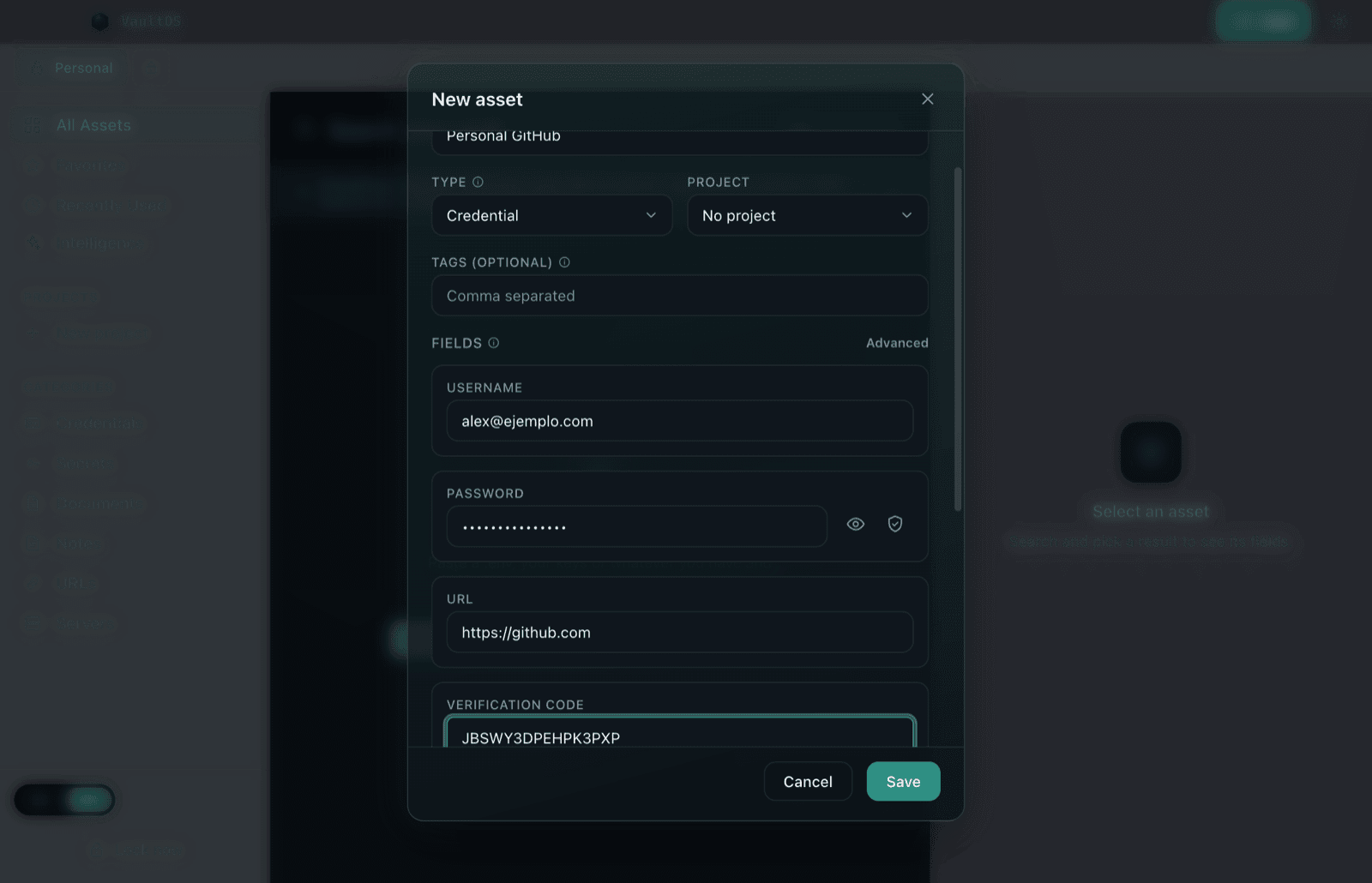
The dice button next to the password field opens the generator: strong passwords without leaving the form.
Smart Import: paste and go
Got a .env, loose keys, connection strings or a notes file full of credentials? Don't retype them: paste and VaultOS structures them for you — everything is processed on your machine, nothing goes online.
- 1Click Add → Paste & organize.
- 2Paste the text as-is. VaultOS detects usernames, passwords, tokens, URLs and hosts, and groups them into items.
- 3Review the proposal: rename, fix or discard each item before importing.
- 4Confirm. The items land in your vault already organized.
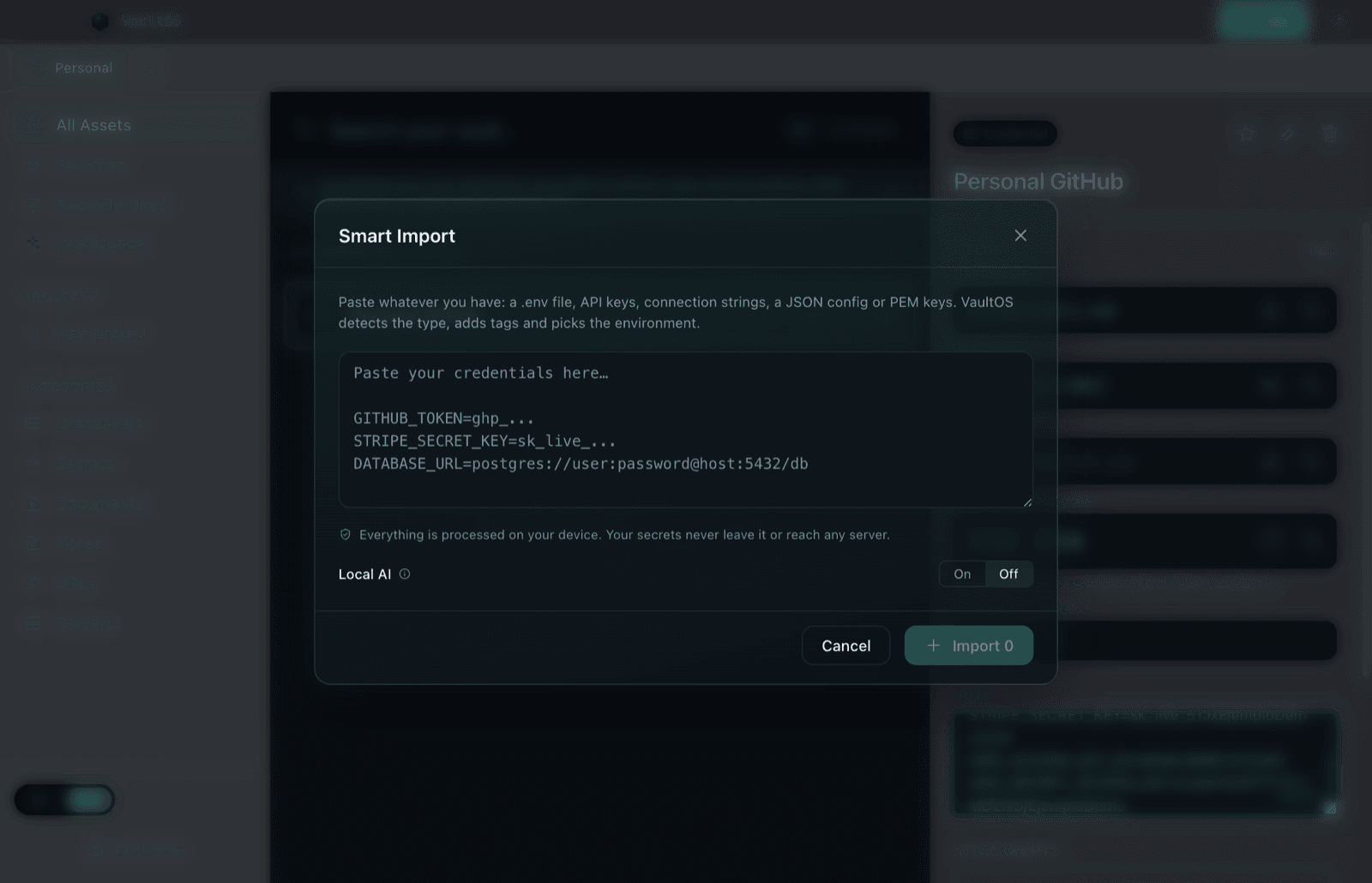
Importing is free and unlimited — the free plan's item cap does not apply to what you bring in.
Search, copy and reveal
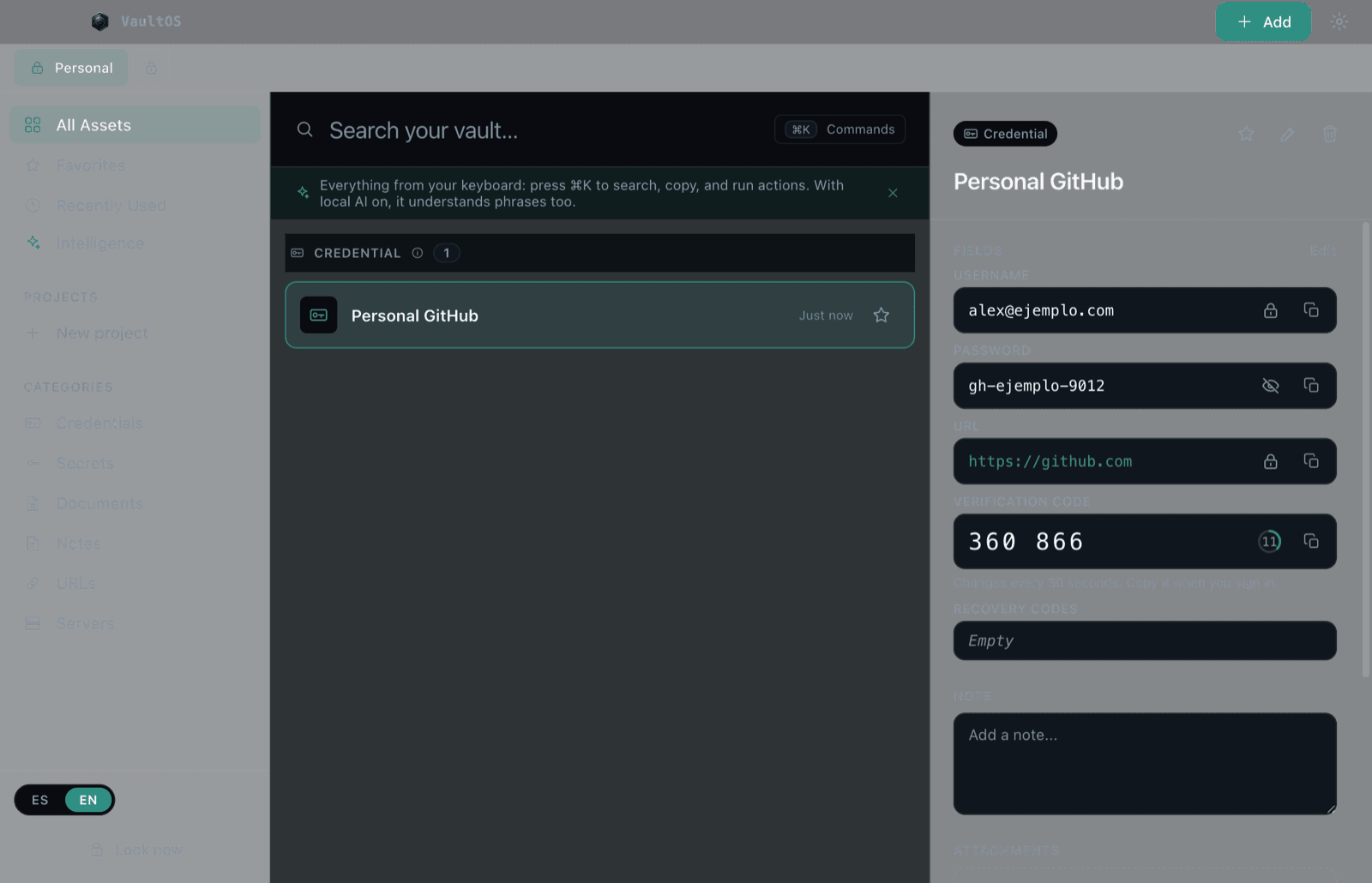
The core VaultOS flow: type in the search bar (⌘F/Ctrl+F from anywhere), arrow down, copy — without touching the mouse.
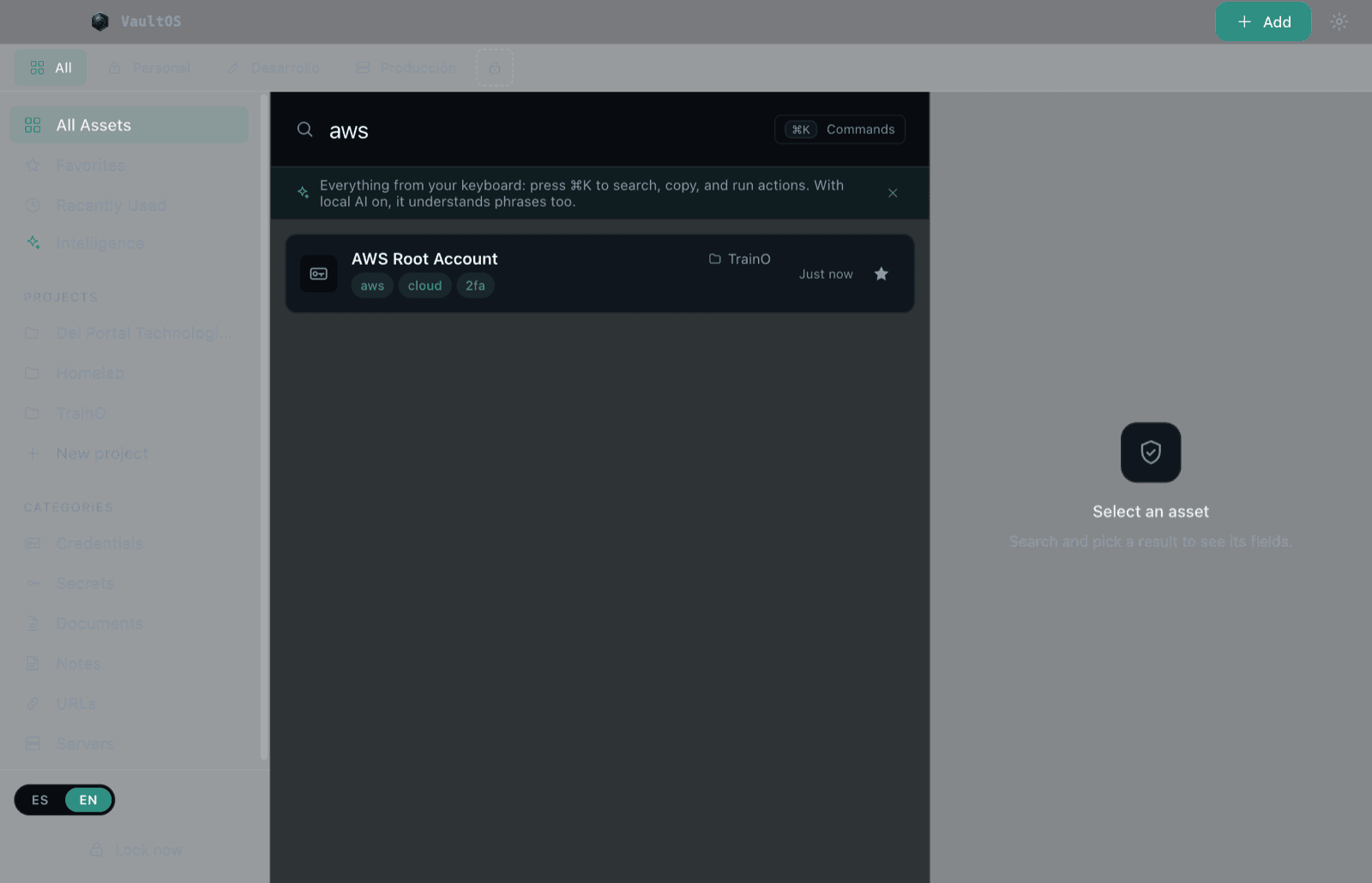
- ·Copy: every field has a copy button; from the list, ⌘Enter/Ctrl+Enter copies the selected item's main secret.
- ·Reveal: secrets always render masked (
••••••••). The eye reveals them while you need them; they re-mask on their own. - ·Short-memory clipboard: whatever you copy is auto-cleared after the configured time (30 seconds by default). If you copied something else afterwards, VaultOS leaves it alone.
Two-factor codes (TOTP)
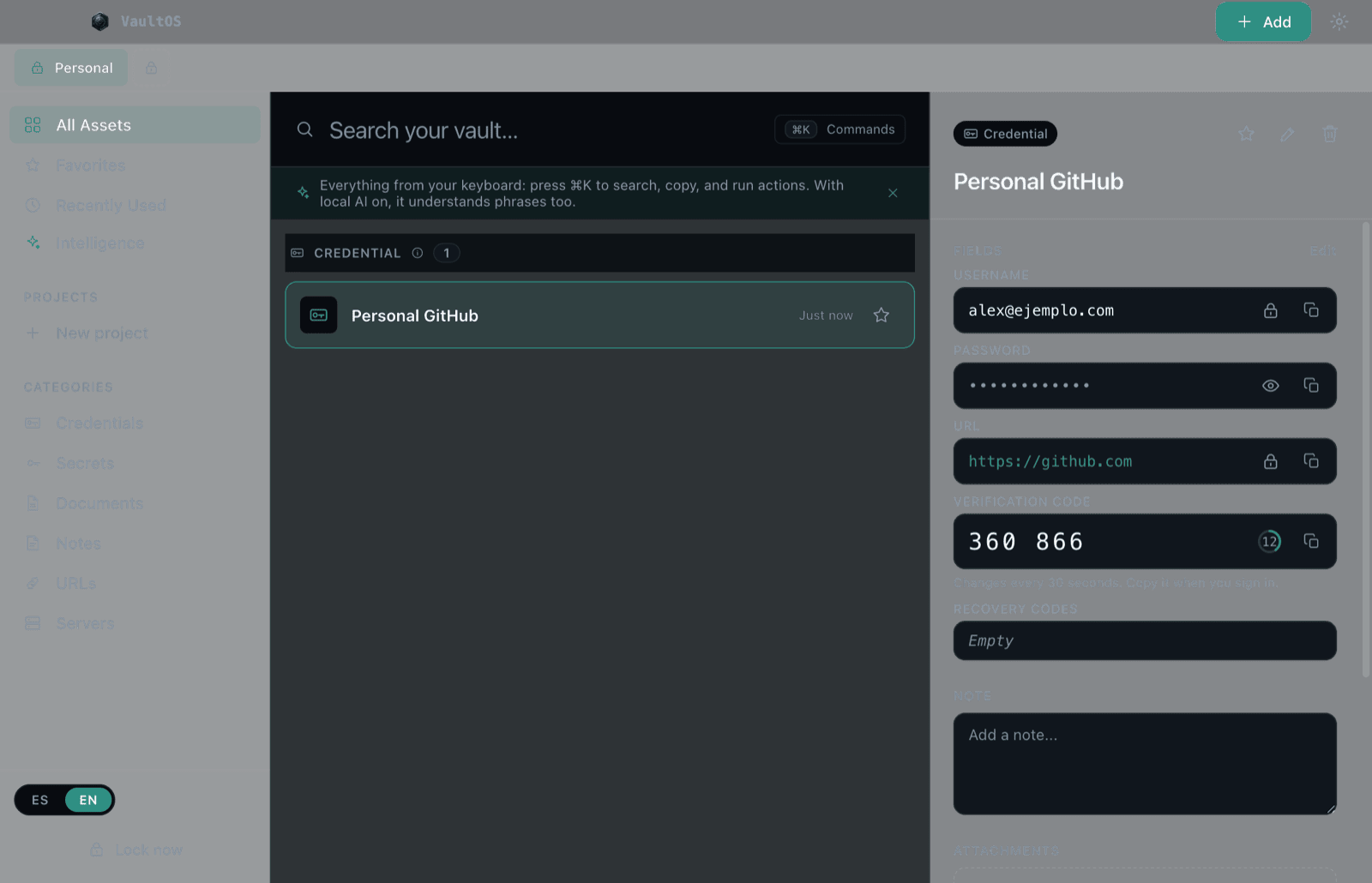
VaultOS generates the 6-digit verification codes (2FA/TOTP) for your accounts, like an authenticator app — right next to that account's password.
- 1When creating or editing a credential, paste the secret key the service gives you into the Verification code field (base32 text, e.g.
JBSW Y3DP EHPK 3PXP, or anotpauth://URL). - 2Save. The detail shows the live code with a countdown; it renews every 30 seconds.
- 3Copy it with one click when the service asks for it.
Does the service show you a QR code instead of the key? Save the QR image and use Settings → Import 2FA to read it — no external apps.
Projects, spaces and favorites
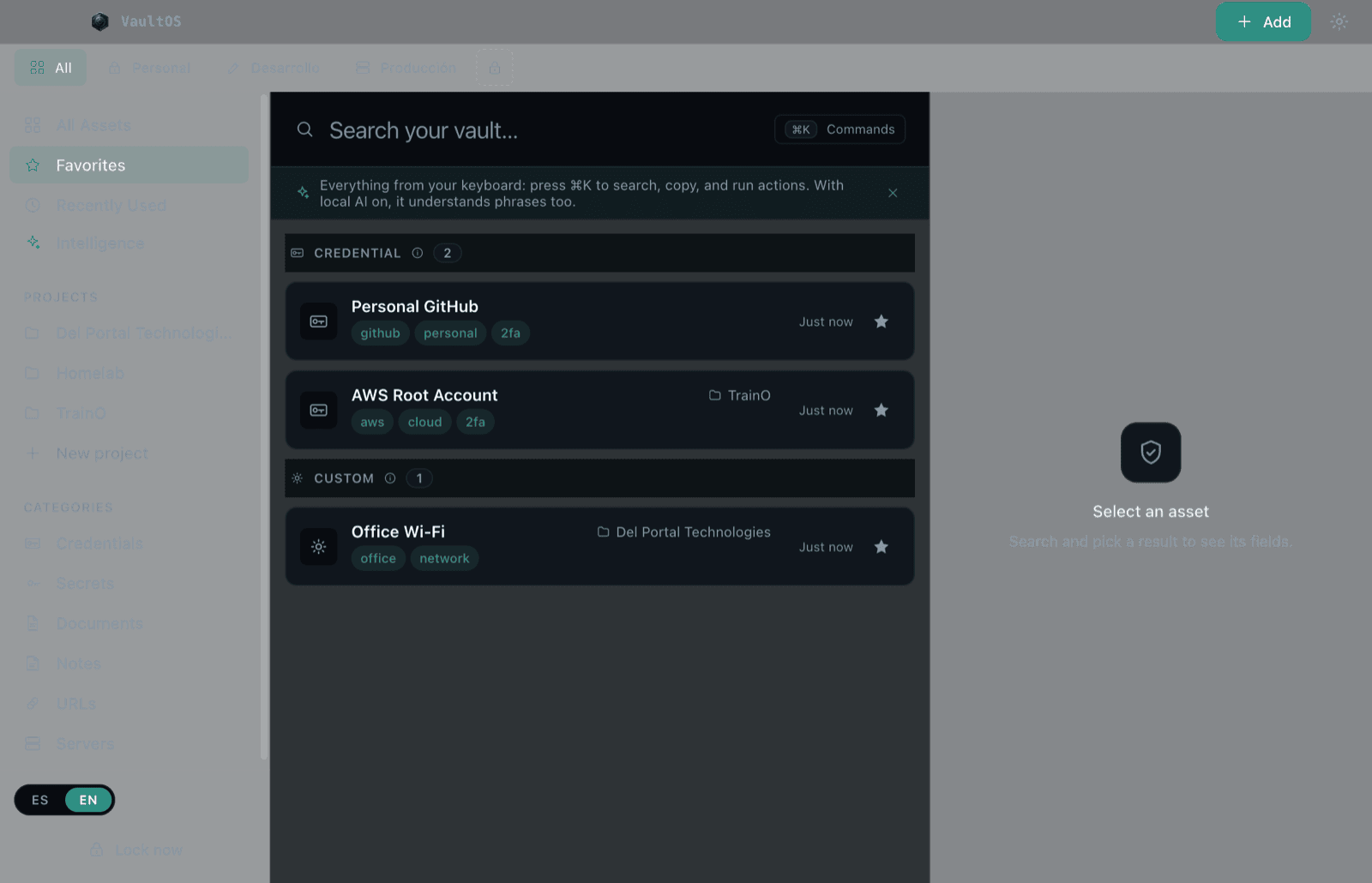
- ·Projects: group items belonging to one job or client (e.g. *Homelab* or your company's name). Create one with New project in the sidebar.
- ·Spaces (tabs on top): separate whole worlds — Personal, Development, Production. Perfect for keeping staging credentials away from the real ones.
- ·Favorites: the star marks what you use daily; it lives in its own view.
- ·Recently Used: the last things you opened or copied, for quick returns.
- ·Categories: every item has a type (credential, secret, document, note, URL, server) and the sidebar filters by it.
Encrypted attachments
Any item can carry file attachments — contracts, .pem keys, PDFs, .md notes — encrypted inside your vault just like your passwords (25 MB max per file).
- 1Open the item and scroll to Attachments.
- 2Click Attach file (or drag files onto the panel).
- 3Each attachment can be Viewed, Renamed, Replaced, its content copied, or exported as a decrypted copy when you need it outside.
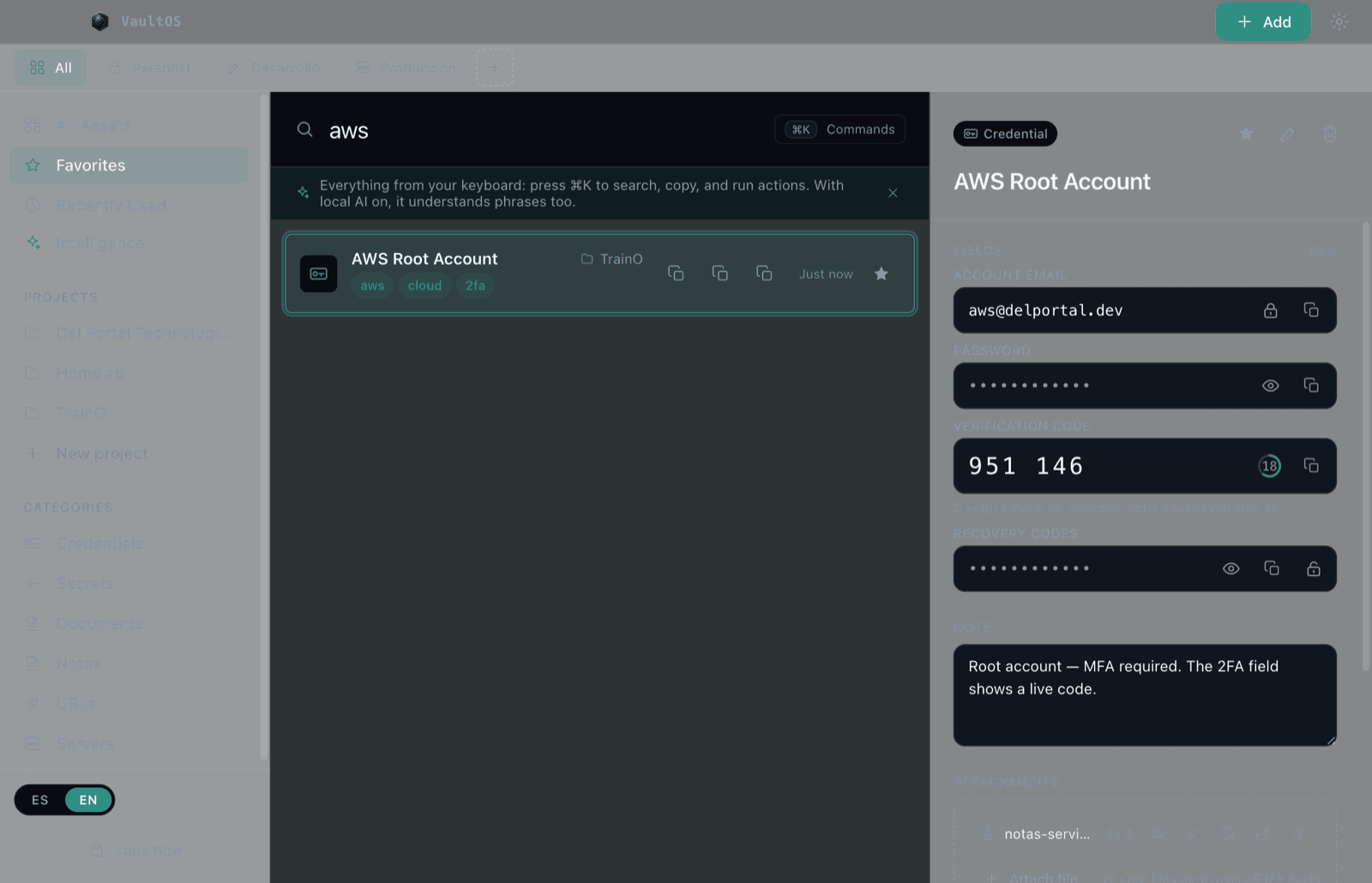
Attachments are part of the Lifetime plan. On the free plan you'll see the section with the option to unlock it.
Backups: export and import
Your vault lives only on your machine, so the backup is yours. VaultOS exports a single encrypted `.vaultos` file you can store anywhere.
- 1Open Settings → Backups → Export backup.
- 2Set a backup passphrase (independent from your master password): it encrypts the exported file.
- 3Save the
.vaultosfile wherever you prefer (external drive, your personal cloud — the file is encrypted). - 4To restore or move machines: Import backup on the destination VaultOS + your backup passphrase.
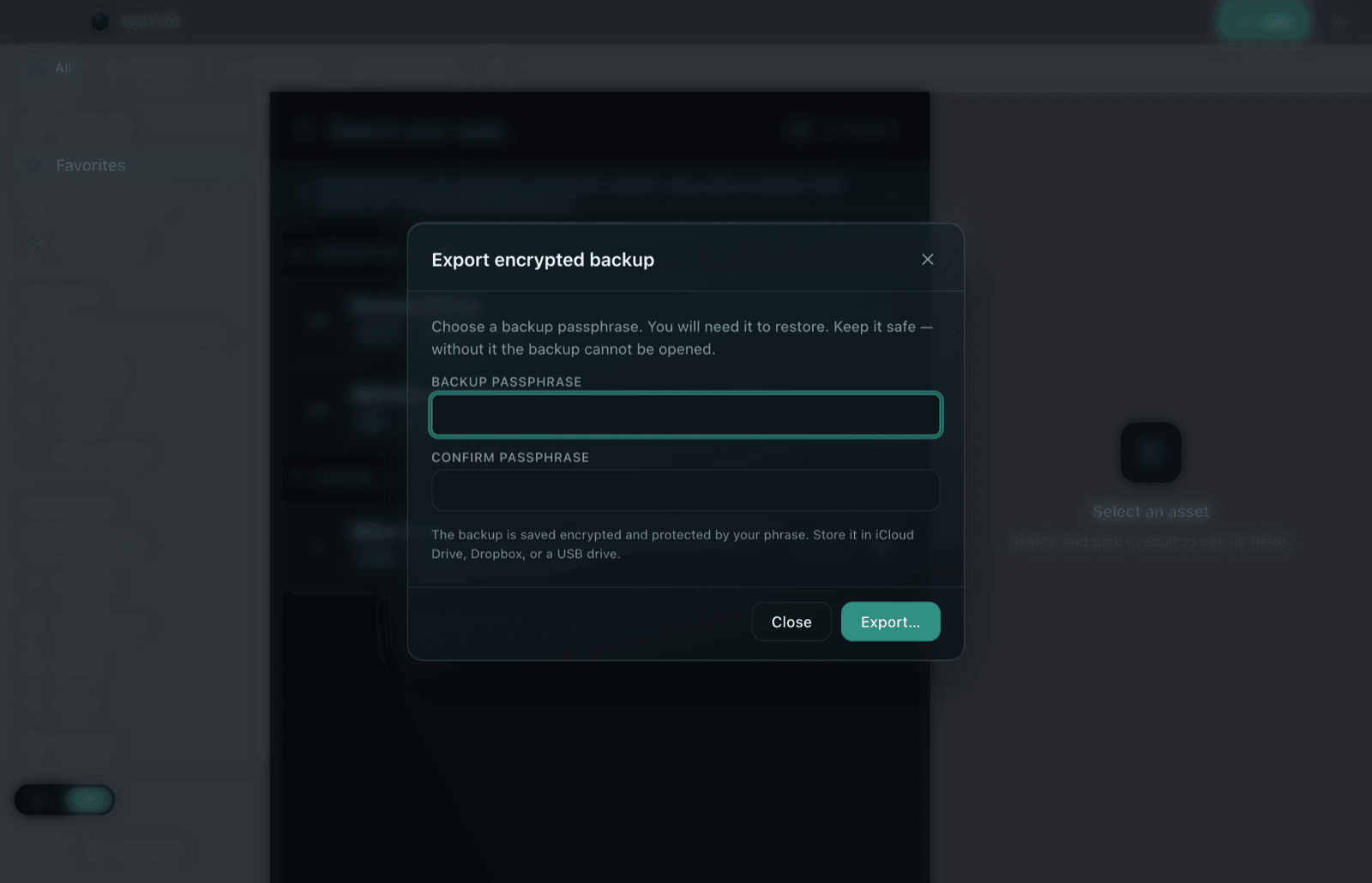
Without the backup passphrase, the
.vaultos file cannot be opened. Guard it as carefully as your master password.Coming from another manager? Settings → Import CSV brings your passwords from 1Password, Bitwarden, LastPass, Chrome or Safari.
Settings
Everything configurable lives behind the gear in the top bar. The highlights:
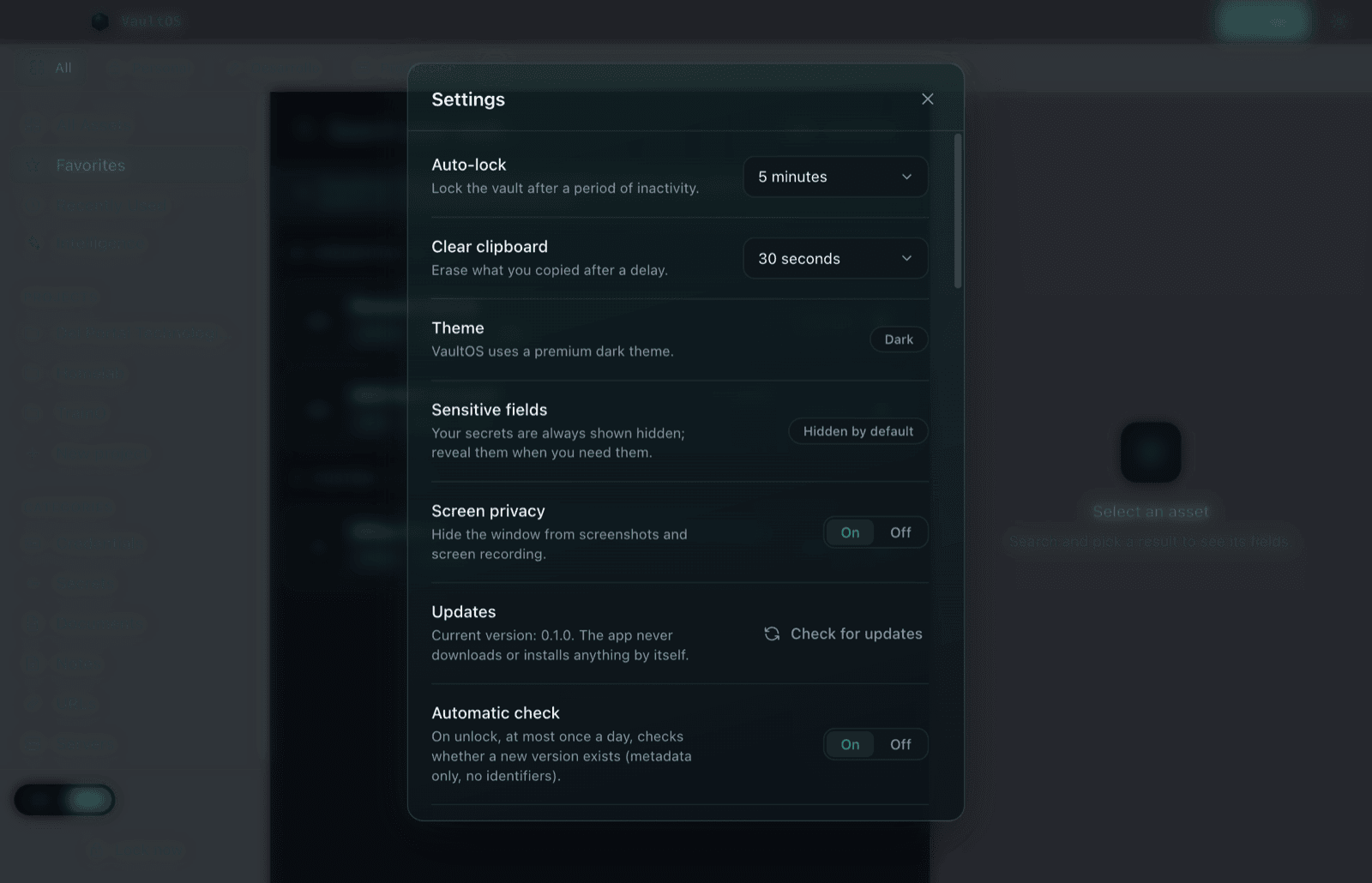
- ·Auto-lock: minutes of inactivity before locking (or never, at your own risk).
- ·Clear clipboard: how long copied values live before self-erasing.
- ·Sensitive fields: secrets always start hidden; reveal them when needed.
- ·Screen privacy: hides the window from screenshots and screen recordings (on by default).
- ·Updates: VaultOS tells you when a new version exists but never downloads or installs anything on its own.
- ·Language: Spanish or English, instantly.
- ·Backups & import: export/import
.vaultos, import CSV, and import 2FA from QR images.
Changing the master password: in the security section, hit Change, type the current one and set the new one. Your recovery code stays valid.
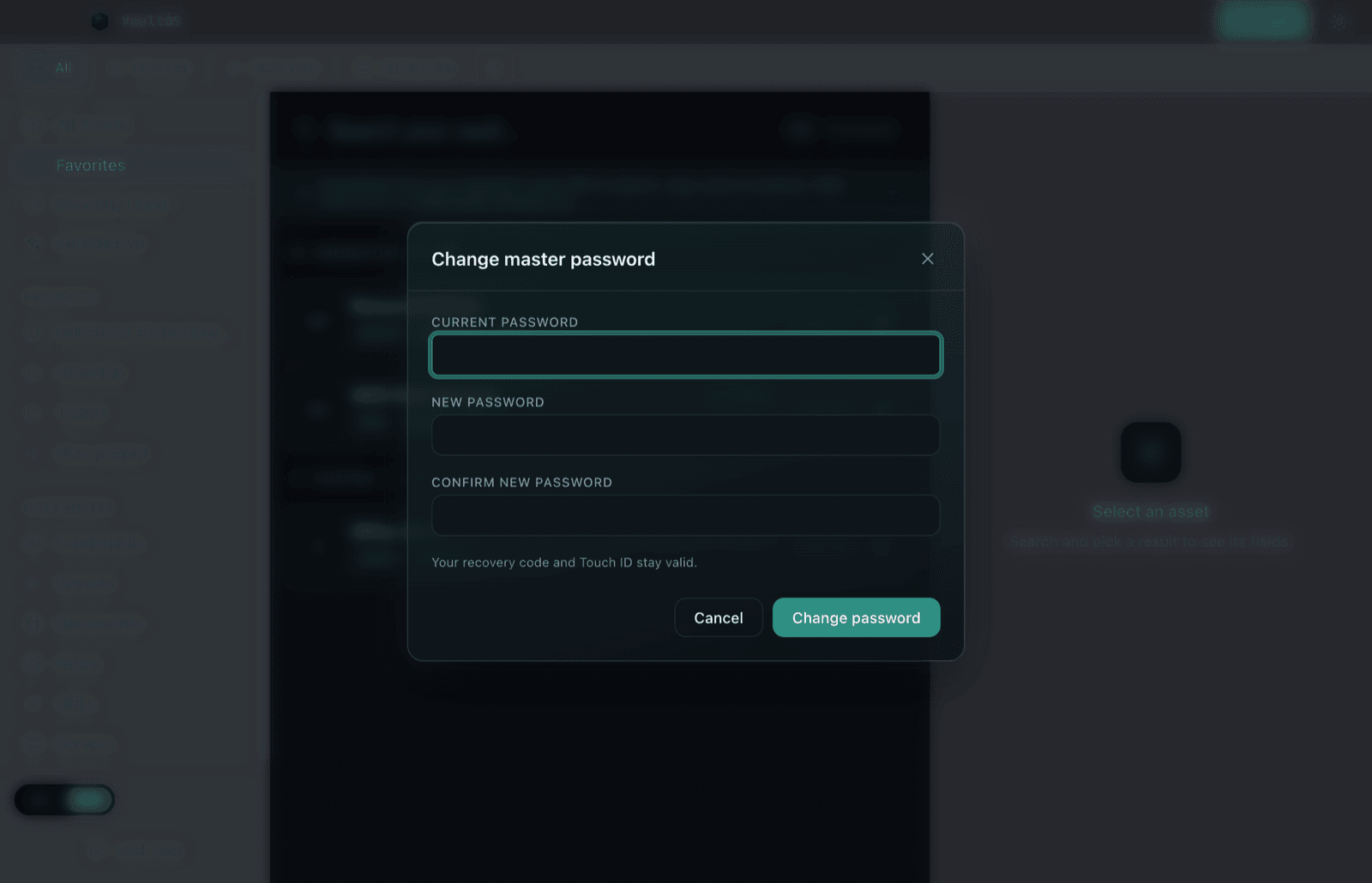
Generate new code (recovery code) invalidates the previous one immediately. Save the new one before closing.
macOS · On Mac you'll also see the Touch ID section: enable it to unlock with your fingerprint and choose whether VaultOS prompts automatically when you return.
Windows · On Windows there is no biometric section: unlocking uses the master password.
Free plan and Lifetime license
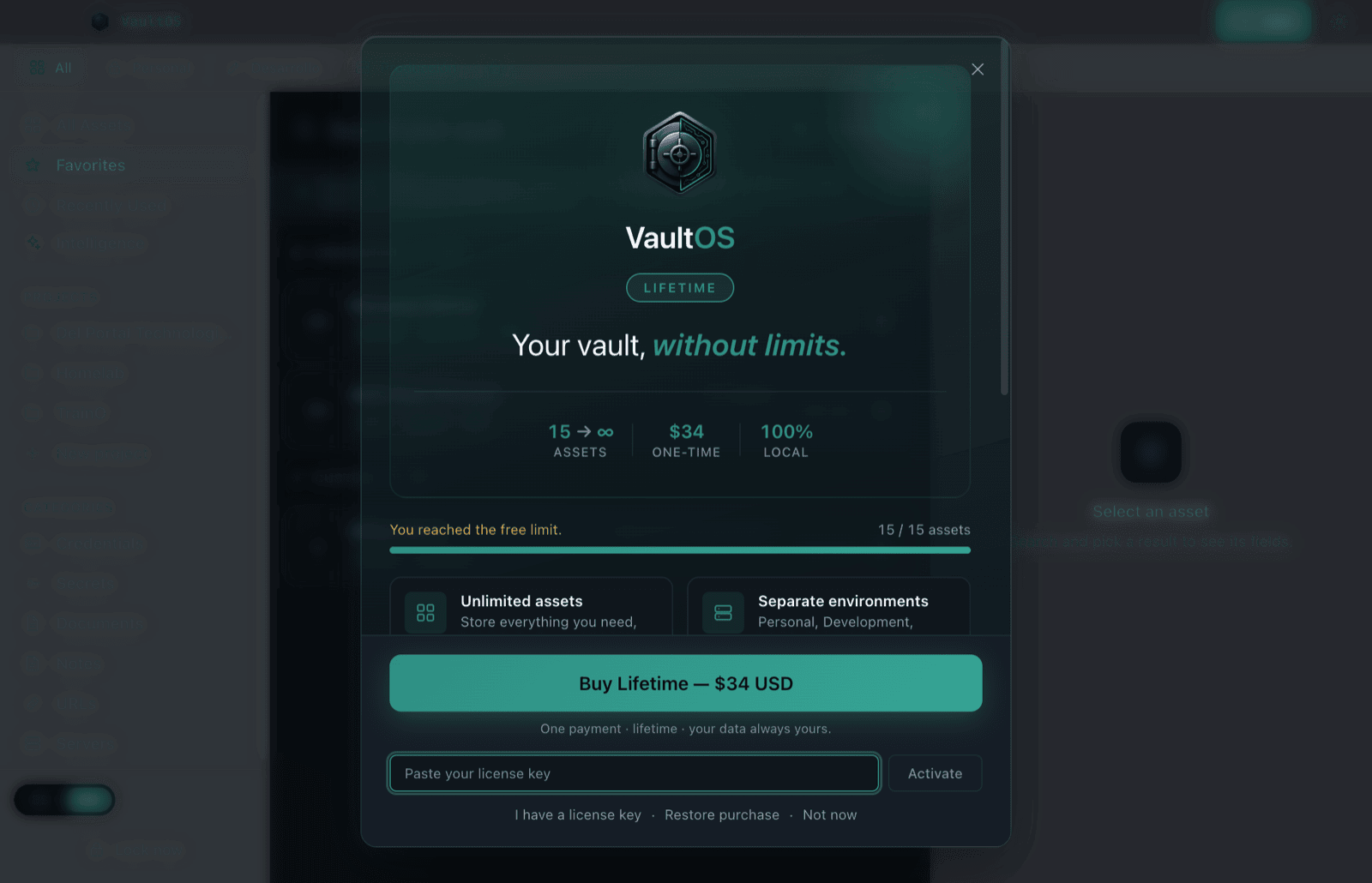
VaultOS is free up to 15 items — everything else (search, copy, TOTP, backups, import) works the same. What you already saved never locks: the cap only applies to creating new items.
The Lifetime license is a one-time $34 USD payment: unlimited items, encrypted attachments, custom environments and local AI included. No subscription.
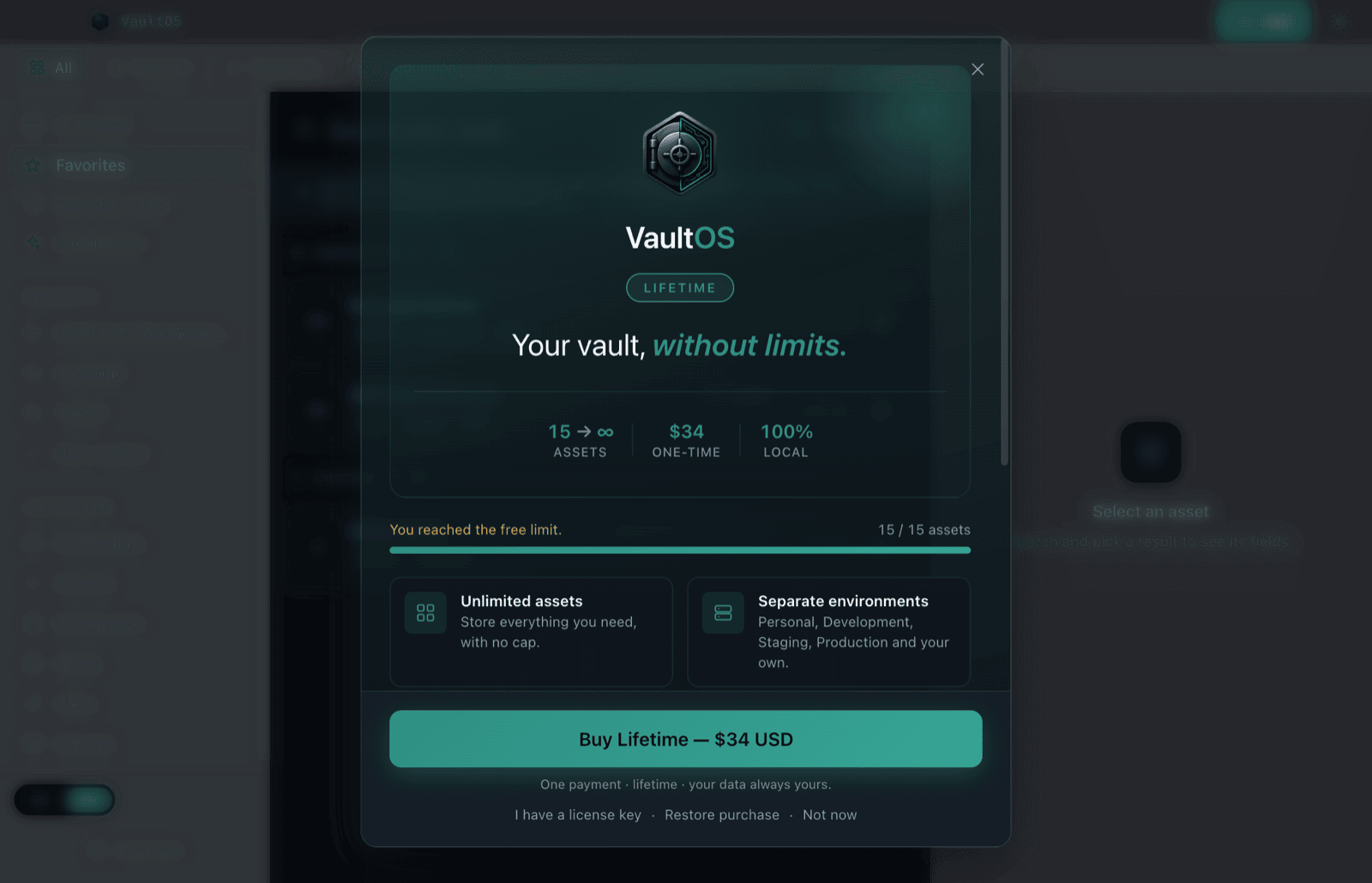
- 1Buy Lifetime from the app (Buy Lifetime button) — payment happens in your browser.
- 2You'll receive a license key by email.
- 3In the app: I have a license key → paste the key → Activate. Done, no restart needed.
Recover access with your recovery code
Forgot your master password? Your recovery code is the emergency key.
- 1On the lock screen, click Forgot your password?.
- 2Enter your recovery code (the
XXXXX-XXXXX-XXXXX-XXXXXone). - 3Set a new master password and confirm.
- 4VaultOS shows you a new recovery code — save it: the old one is now invalid.
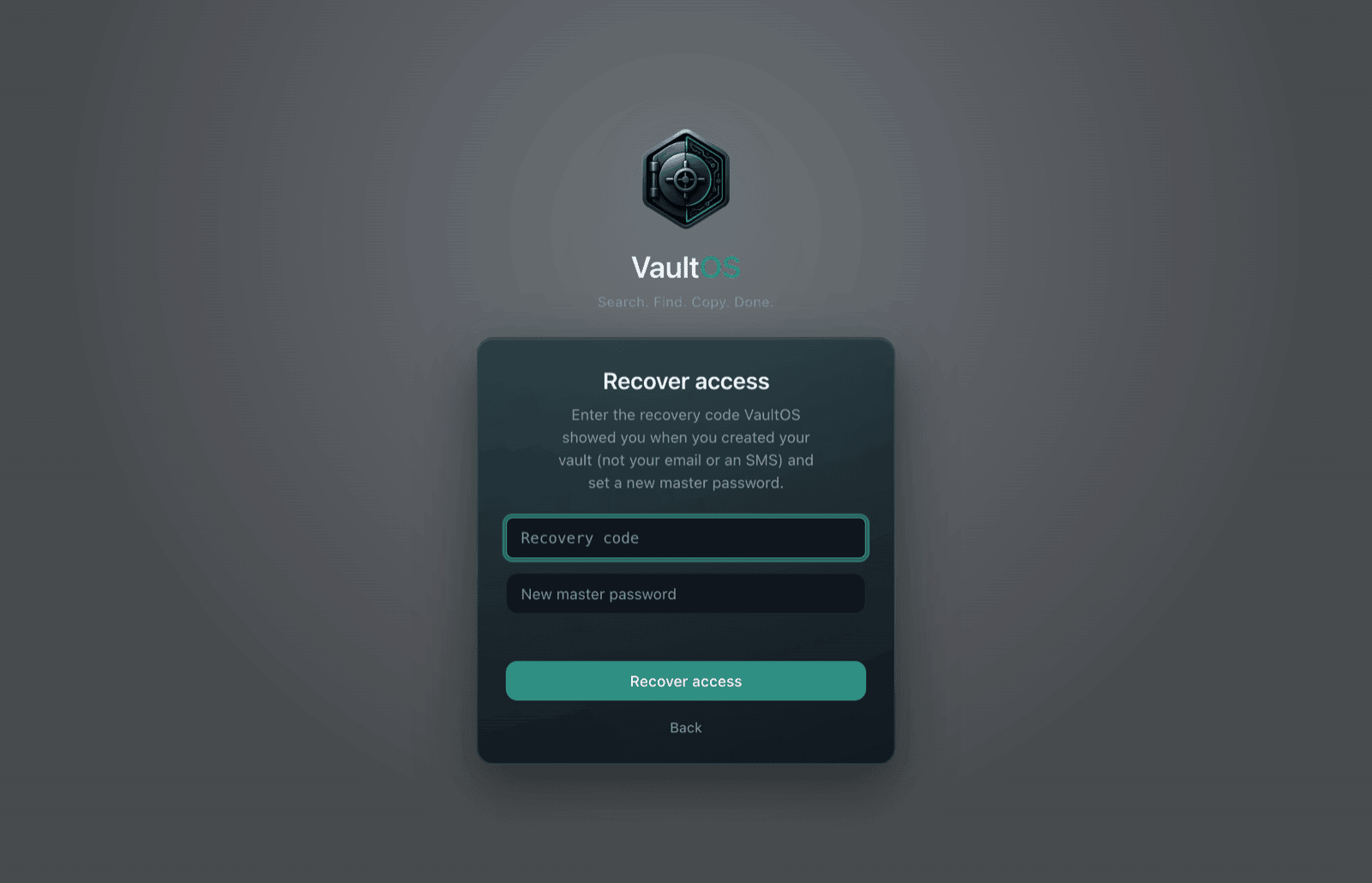
macOS · After recovering access, Touch ID is disabled for safety — re-enable it in Settings if you used it.
Updates
Once a day (if allowed in Settings), VaultOS checks whether a new version exists — metadata only, no identifiers, none of your data. If there is one, a quiet banner shows the release notes.
- ·The app never downloads or installs anything by itself: the banner takes you to the official page, where the installer's SHA-256 fingerprint is published so you can verify the download.
- ·You can check manually via Settings → Check for updates.
- ·If a release is security-critical, the notice says so clearly and explains why.
Shortcuts and command palette
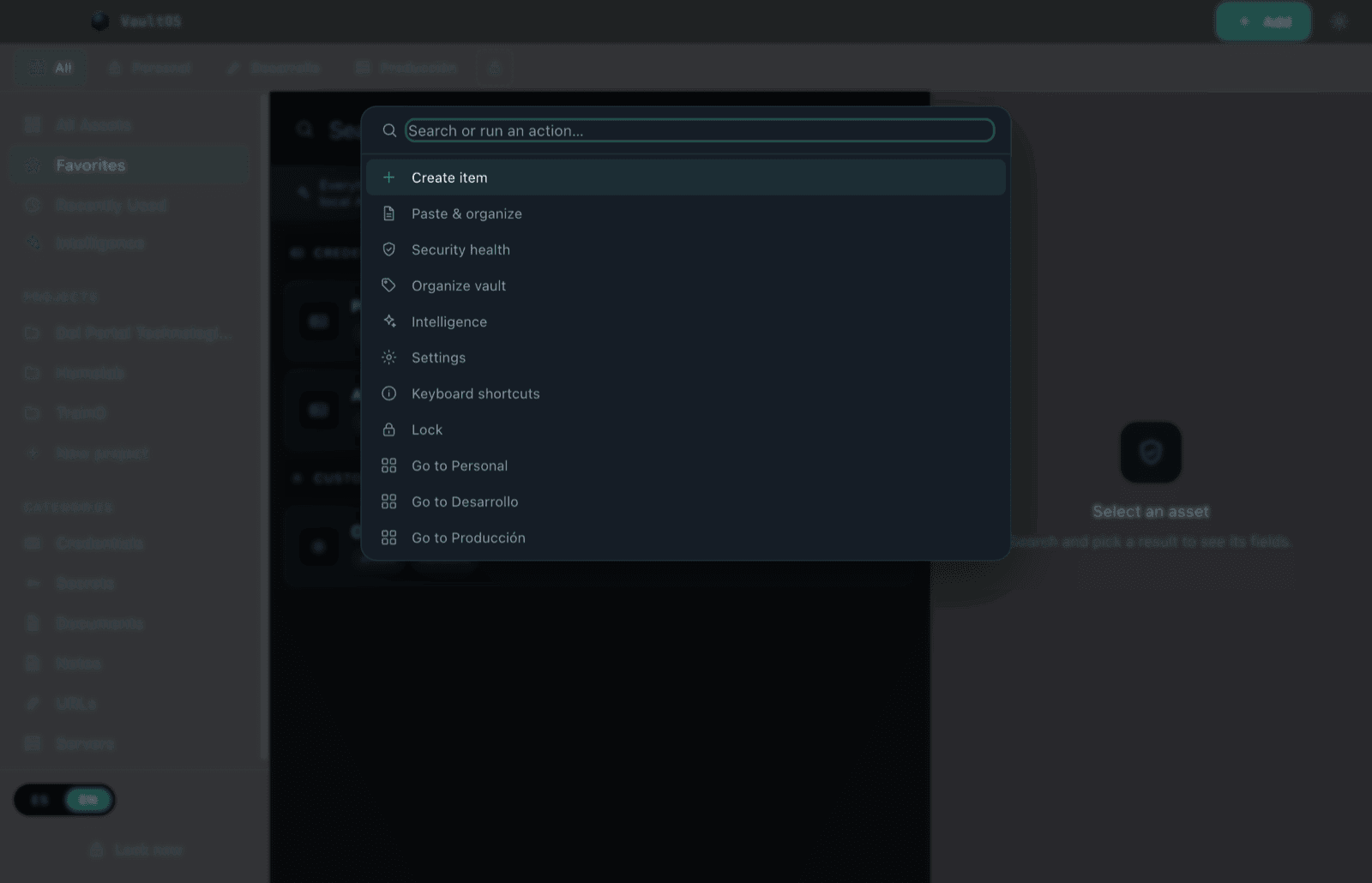
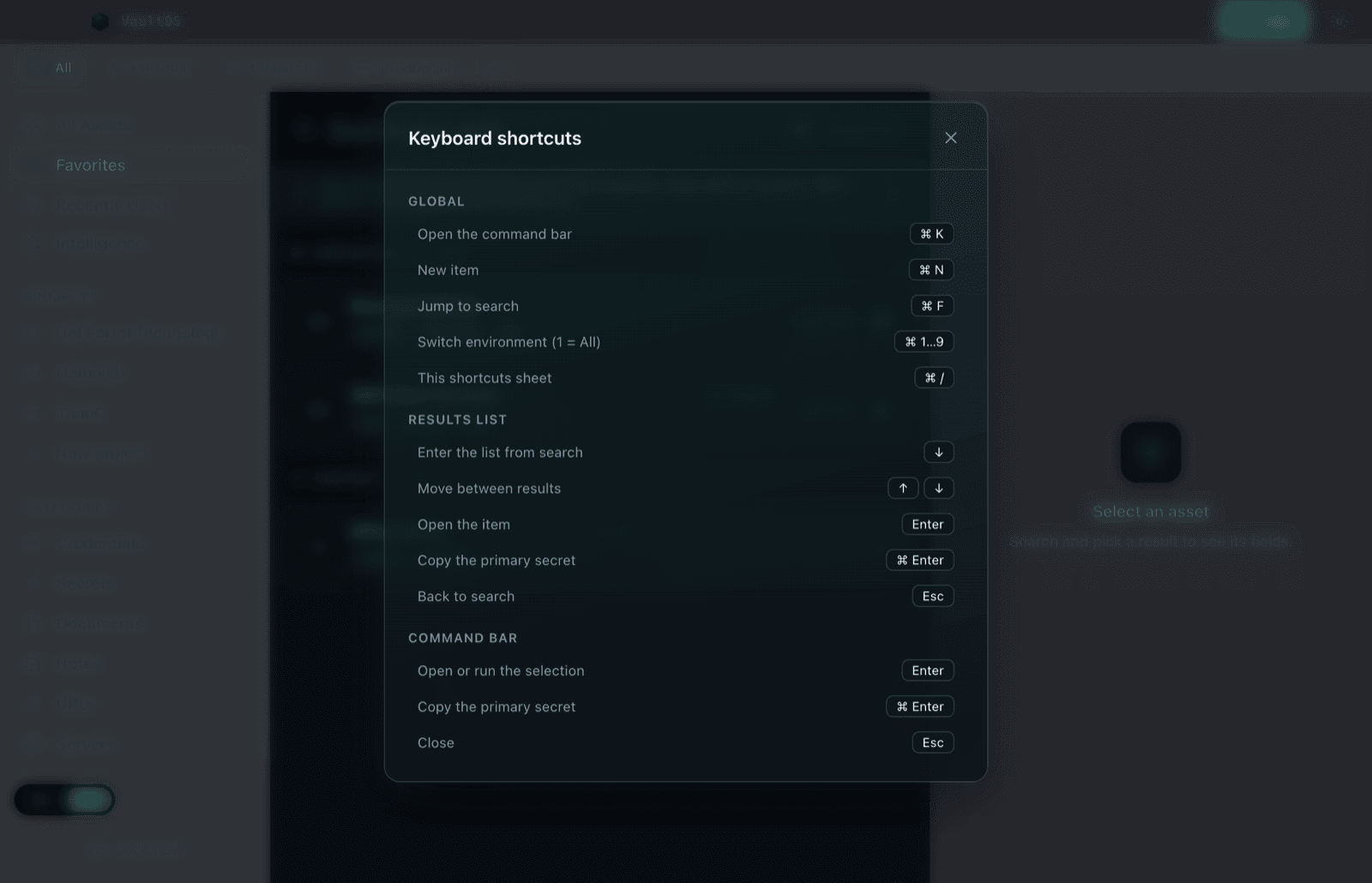
All of VaultOS is keyboard-first. The command palette (⌘K/Ctrl+K) finds and runs actions: open, copy, create, switch spaces. With local AI enabled it also understands phrases like *"copy my prod key"*.
| Action | macOS | Windows |
|---|---|---|
| Command palette | ⌘K | Ctrl+K |
| Jump to search | ⌘F | Ctrl+F |
| New item | ⌘N | Ctrl+N |
| Copy the selected item's secret | ⌘Enter | Ctrl+Enter |
| Switch space | ⌘1…9 | Ctrl+1…9 |
| Shortcuts sheet | ⌘/ | Ctrl+/ |
| Move from search into the results | ↓ | ↓ |
| Close / back | Esc | Esc |
Windows vs macOS
VaultOS is the same app on both systems: same vault, same features, same backups (a .vaultos exported on Mac imports on Windows and vice versa). The actual differences:
| macOS | Windows | |
|---|---|---|
| Shortcuts | ⌘ (Command) | Ctrl |
| Biometric unlock | Touch ID (optional) | Password only (for now) |
| Window controls | Left (traffic lights) | Right (minimize/maximize/close) |
| Installer | .dmg (drag to Applications) | Setup .exe (NSIS) |
| Install notice | Gatekeeper may ask to confirm | SmartScreen: More info → Run anyway |
| Vault location | ~/Library/Application Support/vaultos | %APPDATA%\vaultos |
Still stuck? Open a ticket
If something doesn't work as expected or this manual doesn't answer your question, open a support ticket: tell us what you were trying to do, what happened, and on which system (macOS or Windows). A human replies.
By design, VaultOS cannot see your vault or your secrets — never include them in a ticket.
Still stuck?
Open a ticket and a human will answer — tell us what you tried, what happened, and on which system.
Want VaultOS on your machine?
Leave us your email and we'll deliver the installer for macOS or Windows, along with your install guide.